
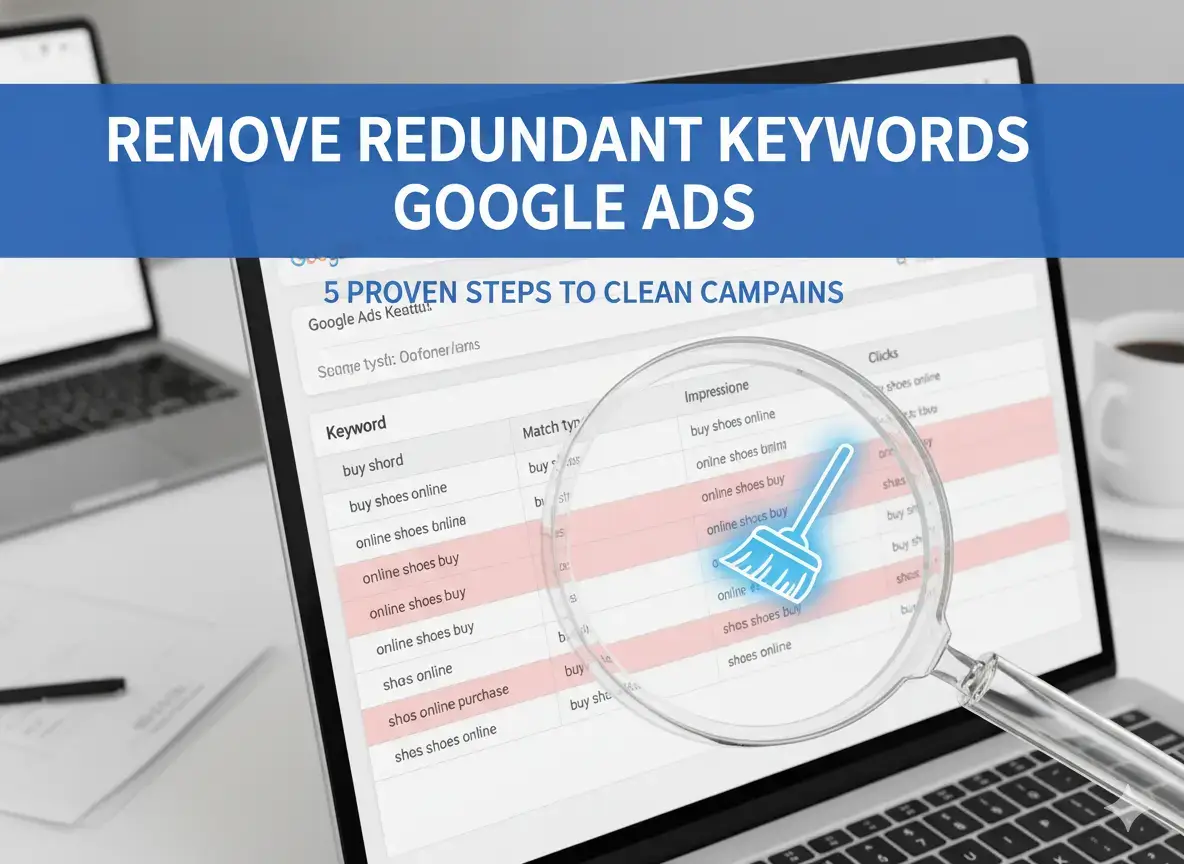
Google’s Recommendations tab will sometimes flag keywords in your account as redundant and suggest removing them. The recommendation sounds logical. It is not always right.
Before you act on it, you need to check one thing: the Quality Score of the keyword being flagged for removal. If that keyword has a higher Quality Score than the one Google wants to keep, applying the recommendation actively harms your campaign. You would be deleting a keyword that earns better ad positions at lower CPCs in favour of one that performs worse.
This 5-step process helps you remove redundant keywords in Google Ads correctly, only when the data supports it, and with the right action for every case.
Table of Contents
Why Google’s Recommendation Is Not Always Right
Google flags a keyword as redundant when its system determines another keyword in the same ad group is capturing the same traffic. The system then recommends removing the “weaker” one.
This recommendation optimises for impression share and account simplicity. It does not optimise for your specific bid strategy, your Quality Score protection, or your reporting requirements.
The “redundant” keyword being flagged for removal may have a higher Quality Score than the keyword Google wants to keep. Deleting a high-Quality-Score keyword to keep a lower one increases your average CPC and weakens your ad position in every auction it would have influenced.
Always check before you act.
What Makes a Keyword Redundant in Google Ads
A keyword is flagged as redundant when Google determines it is being “subsumed” by another keyword in the same ad group.
This happens most often when: the same phrase exists in multiple match types in the same ad group and the broader type captures all the traffic the narrower one would have received; or when two semantically near-identical phrases target the same queries.
Google’s 2021 match type changes significantly expanded how phrase match and broad match behave. Many keyword pairs that previously served distinct query pools now overlap substantially. This increased redundancy flags across accounts.
Step 1: Find Redundant Keyword Recommendations
- In Google Ads, click the Recommendations lightbulb icon
- Filter or scroll to the Keywords category
- Look for “Remove redundant keywords” recommendations
- Click to expand and see each flagged pair
Do not click “Apply all.” Review every pair individually.
Step 2: Check Quality Score for Both Keywords
For each flagged pair:
- Go to the campaign and ad group containing the keywords
- Add the Quality Score column: click Columns, then Modify columns, then add Quality Score
- Compare the Quality Score of the “primary” keyword Google wants to keep vs. the “redundant” one it wants to remove
If the redundant keyword has a higher Quality Score: The recommendation is harmful to apply. Keep both or pause the lower-QS keyword instead.
If Quality Scores are similar: Continue to Step 3.
Step 3: Check Whether Bids Differ
If you have set different bids for different match types intentionally, removing one keyword consolidates all traffic to a single bid level. Assess whether that aligns with your bidding strategy before proceeding.
For context on protecting bids during keyword changes, read Pause vs. Delete Keywords in Google Ads.
Step 4: Check Actual Search Term Overlap
Export search terms data for the flagged keywords and compare which queries each is actually serving.
- Go to Keywords, then Search terms
- Filter by the ad group containing the flagged pair
- Export and compare which queries each keyword served
If both keywords served distinct queries, they are not truly redundant regardless of what Google’s system determined. Keep both.
Step 5: Take the Right Action
Based on your review:
Remove the flagged keyword: Both keywords have similar Quality Scores and serve identical queries. The flagged keyword adds nothing distinct.
Pause the flagged keyword: You are uncertain. Pause and monitor for 2 to 4 weeks. If no traffic is lost, delete. Pausing protects Quality Score history while you evaluate. Read Negative Keywords in Google Ads for related context.
Keep both keywords: Quality Score differs, bids differ, or the search terms show distinct query pools. Decline the recommendation.
Disable Auto-Apply to Stay in Control
Google Ads has a setting that auto-applies certain recommendations, potentially including keyword removals, without your approval.
- Go to the Recommendations tab
- Click the Auto-apply tab
- Review which recommendation types are set to auto-apply
- Disable keyword change recommendations from auto-applying
Manual control for keyword decisions is worth the extra minutes. An incorrect automated deletion can set campaign performance back months.
Frequently Asked Questions
Can redundant keywords actively hurt performance?
They are unlikely to cause active harm. The worst outcome is split performance data and a slightly less clean account structure. Many advertisers intentionally maintain keyword variants across match types.
What is the difference between a redundant keyword and a conflicting keyword?
A redundant keyword is outcompeted by another keyword in the same ad group. A conflicting keyword is blocked from serving by a negative keyword. The fixes are different: redundancy requires consolidation decisions, conflict requires adjusting your negative keyword list.
Related articles: