
Ajitkumar Gupta Logo
Input
📄 Drop .md file here
Output
✓ Copied!
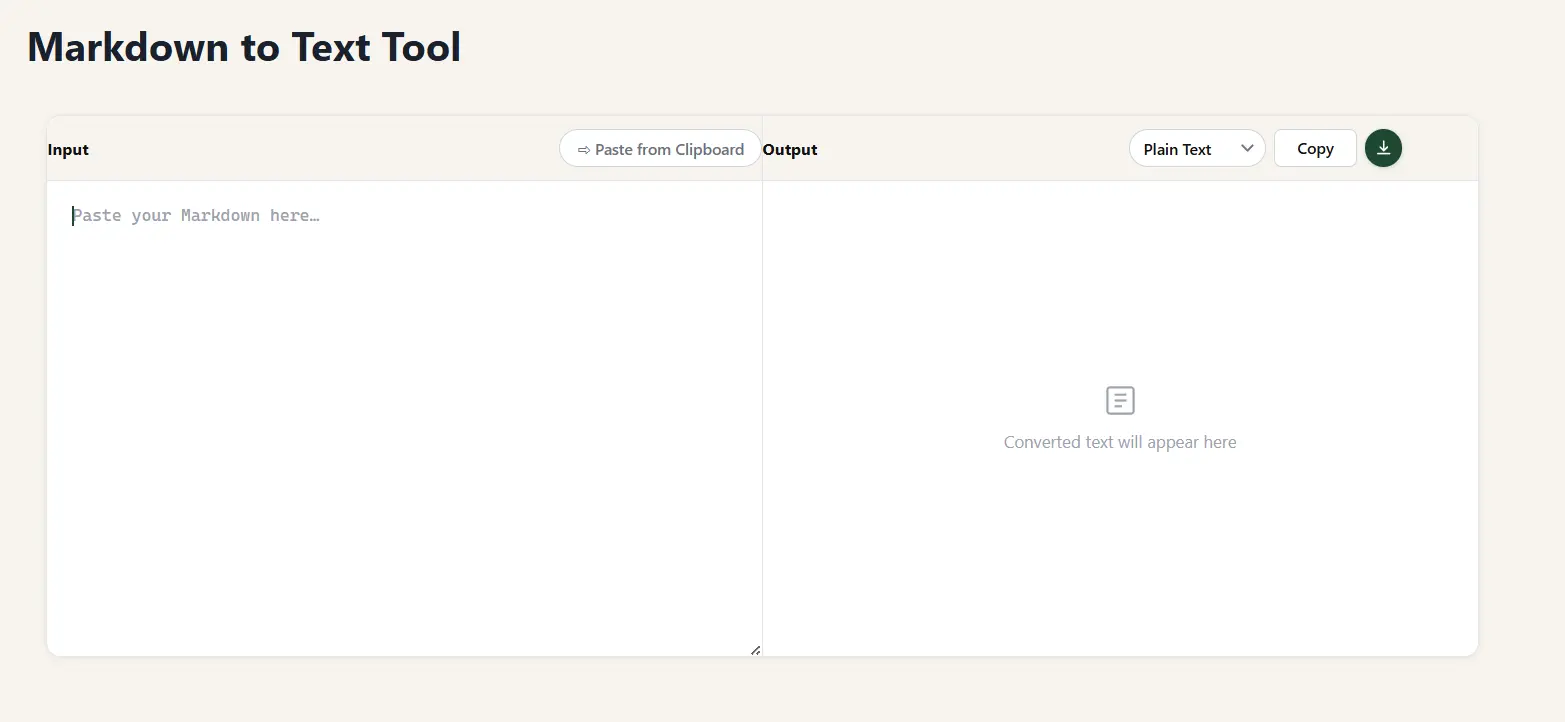
Converted text will appear here
' + body + ''; var w = window.open('', '_blank'); if (w) { w.document.write(page); w.document.close(); w.focus(); setTimeout(function () { w.print(); }, 400); } else { var a = document.createElement('a'); a.href = URL.createObjectURL(new Blob([page], { type: 'text/html' })); a.download = 'converted.html'; document.body.appendChild(a); a.click(); document.body.removeChild(a); } akgToast('Opening print / Save as PDF\u2026'); }; /* ── Paste ── */ window.akgPaste = function () { if (navigator.clipboard && navigator.clipboard.readText) { navigator.clipboard.readText().then(function (txt) { inp.value = txt; inp.dispatchEvent(new Event('input')); akgToast('Pasted from clipboard'); }).catch(function () { inp.focus(); }); } else { inp.focus(); } }; /* ── Drag & drop ── */ var wrap = document.getElementById('akg-input-wrap'); wrap.addEventListener('dragover', function (e) { e.preventDefault(); wrap.classList.add('akg-drag-over'); }); wrap.addEventListener('dragleave', function () { wrap.classList.remove('akg-drag-over'); }); wrap.addEventListener('drop', function (e) { e.preventDefault(); wrap.classList.remove('akg-drag-over'); var file = e.dataTransfer.files[0]; if (!file) return; var r = new FileReader(); r.onload = function (ev) { inp.value = ev.target.result; inp.dispatchEvent(new Event('input')); akgToast('Loaded: ' + file.name); }; r.readAsText(file); }); /* ── Toast ── */ function akgToast(msg) { var el = document.getElementById('akg-toast'); el.textContent = msg; el.classList.add('akg-show'); clearTimeout(akgTT); akgTT = setTimeout(function () { el.classList.remove('akg-show'); }, 2600); } /* ── Keyboard shortcut ── */ document.addEventListener('keydown', function (e) { if ((e.ctrlKey || e.metaKey) && e.shiftKey && e.key === 'C') { e.preventDefault(); window.akgCopy(); } }); /* ── Autosave / restore ── */ try { var saved = localStorage.getItem('akg_md'); if (saved) { inp.value = saved; inp.dispatchEvent(new Event('input')); } } catch (e) {} inp.addEventListener('input', function () { try { localStorage.setItem('akg_md', inp.value); } catch (e) {} }); }());

Seeing asterisks and hashes where you expected clean text? Paste your Markdown into the tool above. Get clean plain text, HTML, or rich text in one click. Free, no signup, no install. The symbols disappear; the words stay.

Markdown to text conversion solves a specific, recurring frustration. You draft clean content in a notes app, an AI tool, or a code editor. The moment you paste that content into an email, a CMS field, or an API response, raw symbols flood the output. Asterisks around words. Hash marks before headings. Brackets and parentheses tangled around links.

This guide covers every method that works. The free browser tool at the top for quick one-off conversions. Python and JavaScript code for developers. Pandoc commands for batch processing. Platform-specific fixes for Discord, VS Code, R Markdown, Sublime Text, and AI API outputs. Pick what fits your situation and get clean output in under two minutes.

What is Markdown and Why Does Your Text Show Raw Symbols?

What is Markdown?

Markdown is a lightweight text formatting language that uses plain symbols (like asterisks and hash marks) to represent formatting. It only displays correctly when a Markdown renderer processes those symbols. Without a renderer, you see the raw syntax exactly as written.

John Gruber created Markdown in 2004 with a specific goal: to make formatting readable even before it is rendered. A document full of **bold** and # headings is still legible as plain text, unlike HTML, where <strong>bold</strong> and <h1>heading</h1> are harder to read at a glance.

Today Markdown appears in more places than most people realise. GitHub uses it for every README, issue, and pull request. Notion, Obsidian, Typora, and StackEdit are built around it. Documentation platforms like MkDocs, Docusaurus, and GitBook render entire sites from Markdown files. AI tools including ChatGPT, Claude, and Gemini return Markdown-formatted text by default through their APIs. Discord renders a Markdown subset inside its own client.

Two standards define how Markdown works today. CommonMark is a rigorously defined specification that ensures consistent rendering across different tools: if a parser is CommonMark-compliant, a heading written as # Heading will always render the same way. GitHub Flavored Markdown (GFM) extends CommonMark with tables, task lists, strikethrough text, and spoiler tags. It powers rendering across GitHub and GitLab, covering over 420 million repositories as of 2026 and making GFM the most widely deployed Markdown variant in the world.

What Is Markdown Text, and How Is It Different From Plain Text?

Markdown text is human-readable formatting embedded as symbols inside a plain text file. Plain text is the same file after those symbols have been stripped away: only the words remain, with no formatting of any kind.

Different destinations need different conversions. An email client needs plain text or HTML. A word processor needs rich text. A website needs HTML. Sending the wrong format to the wrong destination produces either raw symbols or broken layout.

Markdown TextPlain Text
Symbols visibleYes: **bold**, # HeadingNo
FormattingRequires a rendererNone
Best forWriting, version control, documentationEmail, APIs, NLP, SMS, databases
File type.md.txt
SizeSame as plain textSame as Markdown

Why Does Your Text Show Asterisks, Hashes, and Brackets?

You are seeing raw Markdown syntax because the environment displaying your text has no Markdown renderer. Markdown only displays correctly when an application actively interprets the symbols. In plain text email clients, unrendered API responses, and most CMS input fields, the syntax appears exactly as typed.

Six environments consistently break Markdown rendering:

Email clients (Gmail, Outlook, Apple Mail, Superhuman): These do not render Markdown. Paste **bold** into the message body and your recipient reads **bold**, not bold text.

CMS platforms (WordPress, Contentful, Webflow): Most content fields expect HTML input, not Markdown syntax. WordPress’s Gutenberg editor, Contentful’s rich text field, and Webflow’s text blocks all display raw symbols when Markdown is pasted directly.

AI and LLM API outputs (ChatGPT, Claude, Gemini): These tools return Markdown-formatted text by default through their APIs. In the chat interface, it renders correctly. In every other context (an email, a push notification, a database field) it does not.

SMS and messaging apps outside Discord: Plain text only. Symbols appear raw.

SEO audit tools and text analysis tools: Markdown symbols inflate word counts, skew readability scores, and corrupt keyword density numbers. Text with ** around every bold word registers those asterisks as extra characters in word counts and readability scores.

PDF export pipelines: Markdown files converted directly to PDF without a rendering step produce documents full of raw symbols.

Raw MarkdownYou ExpectYou See Without a Renderer
**Hello World**Hello World (bold)**Hello World**
# WelcomeH1 heading# Welcome
[Click here](https://site.com)Clickable hyperlinkClick here
- ItemBullet point– Item
`code`Formatted inline code`code`
~~strikethrough~~Crossed-out textstrikethrough
||spoiler||Hidden Discord spoiler text||spoiler||
> quoteIndented blockquote> quote

Markdown vs. Plain Text vs. Rich Text vs. HTML: Which Should You Use?

Choosing the wrong output format is the most common conversion mistake. Each format works for a specific destination. Match the format to where the content is going.

FormatSymbols Visible?Formatting Preserved?Best DestinationFile Type
MarkdownYes (raw)Only with a rendererGitHub, Obsidian, documentation platforms.md
Plain TextNoFormatting stripped entirelyEmail, APIs, text analysis pipelines, SMS, databases.txt
Rich TextNoYes: in word processorsMicrosoft Word, Google Docs, Apple Pages.rtf / .docx
HTMLNo (rendered)Yes: in web browsersWebsites, CMS platforms, HTML email builders.html

The decision is simple. If your destination renders HTML, convert to HTML. If your destination is a word processor, convert to rich text or DOCX. If your destination is anything else (an email body, an API field, an text analysis tool, a plain text database column) strip to plain text.

Markdown Text Example: What Real Markdown Looks Like

Seeing a real-world example makes the conversion problem immediately clear. Here is a typical piece of Markdown: a short project update that might come from an AI tool, a note-taking app, or a developer’s README:

Raw Markdown input:

# Q3 Project Update

**Status:** Complete  
**Owner:** Sarah Chen

## Key Results

- Revenue increased by **12%** vs. Q2
- Churn reduced from `4.2%` to `3.1%`
- New feature shipped: [Customer Dashboard](https://app.example.com/dashboard)

## Next Steps

> Review findings with the board before **October 15**.

~~Previous deadline: September 30~~ (moved due to data delay)

After conversion to plain text:

Q3 Project Update

Status: Complete
Owner: Sarah Chen

Key Results

Revenue increased by 12% vs. Q2
Churn reduced from 4.2% to 3.1%
New feature shipped: Customer Dashboard

Next Steps

Review findings with the board before October 15.

Previous deadline: September 30 (moved due to data delay).

After conversion to HTML:

<h1>Q3 Project Update</h1>
<p><strong>Status:</strong> Complete<br>
<strong>Owner:</strong> Sarah Chen</p>
<h2>Key Results</h2>
<ul>
  <li>Revenue increased by <strong>12%</strong> vs. Q2</li>
  <li>Churn reduced from <code>4.2%</code> to <code>3.1%</code></li>
  <li>New feature shipped: <a href="https://app.example.com/dashboard">Customer Dashboard</a></li>
</ul>
<h2>Next Steps</h2>
<blockquote><p>Review findings with the board before <strong>October 15</strong>.</p></blockquote>
<p><del>Previous deadline: September 30</del> — moved due to data delay.</p>

The plain text output is clean and readable. The HTML output preserves visual formatting for web use. Both eliminate the raw symbols that cause problems in unrendered environments.

The 3 Types of Markdown Conversion: Know Before You Convert

Every markdown to text conversion falls into one of three categories. Picking the wrong one produces the wrong result.

Markdown to Plain Text: Strip Every Symbol

Plain text conversion removes all Markdown syntax. Only the readable words remain. **Hello World** becomes Hello World. # Heading becomes Heading. No bold. No headings. No symbols of any kind.

Use this when: The destination is an email body, an SMS, an text analysis pipeline, a database field, a push notification, or any system that does not render markup. Also use it to clean AI API output before display.

Reliable tools: strip-markdown (npm), mistune + BeautifulSoup (Python), Pandoc with -t plain, the free tool on this page.

Markdown to HTML: Preserve Formatting for the Web

HTML conversion translates each Markdown symbol into its matching HTML tag. Bold becomes <strong>. Headings become <h1> through <h6>. Lists become <ul> and <li> elements. Links become <a href> tags.

Use this when: The destination is a website, a CMS platform, an HTML email builder (Mailchimp, Klaviyo, SendGrid), or any browser-rendered environment.

Reliable tools: marked.js, markdown-it, Showdown.js (JavaScript); markdown library, mistune (Python); Pandoc.

Markdown to Rich Text: Format for Word Processors

Rich text conversion preserves visual formatting inside document editors. The output opens in Microsoft Word or Google Docs with real bold text, proper heading styles, and formatted bullet lists: no symbols visible anywhere.

Use this when: A client needs a Word document, a colleague must edit in Google Docs, or the destination is any application that renders RTF or DOCX formatting natively.

Reliable tools: Pandoc (DOCX and RTF output), Typora (built-in export), the rich text output tab in the free tool above.

Output Format Decision Table

Your DestinationOutput TypeBest Tool
Email body (Gmail, Outlook)Plain TextFree tool, strip-markdown, mistune
CMS field (WordPress, Contentful)HTMLmarked.js, Pandoc, markdown-it
Microsoft WordDOCX / Rich TextPandoc, Typora
Google DocsDOCX → import, or HTML pastePandoc
PDFPDFPandoc + wkhtmltopdf, VS Code extension
Website / web appHTMLmarked.js, markdown-it, Pandoc
SEO or text audit toolPlain Textstrip-markdown, mistune, regex
PowerPoint / SlidesPPTXMarp, Pandoc
LaTeX document.texPandoc
SMS / push notificationPlain Textstrip-markdown, mistune
AI API response cleaningPlain Textstrip-markdown, mistune

Free Markdown to Text Converter Online: Use It Right Now

The free converter at the top of this page handles all three output formats (plain text, HTML, and rich text) in a single tool. No download. No account. No data sent to a server. Everything runs inside your browser.

Using it takes four steps:

Step 1: Paste your raw Markdown into the input field, or drag and drop a .md file directly onto the input area.

Step 2: Select your output format: Plain Text, HTML, or Rich Text. The result updates instantly.

Step 3: Review the output. The conversion runs entirely inside your browser, so tables, fenced code blocks, nested lists, and inline HTML all convert correctly.

Step 4: Click Copy or press Ctrl+Shift+C. Your last input is saved automatically and restored next visit.

What This Tool Supports

Input formats: CommonMark, GitHub Flavored Markdown (GFM), nested lists, fenced code blocks (triple backtick), tables with alignment, inline HTML, task lists, footnotes, and YAML frontmatter (stripped automatically).

Output formats: Clean plain text with all symbols removed, valid HTML ready for web use, and rich text compatible with Word and Google Docs.

Compatibility: Works on all modern browsers on desktop, tablet, and smartphone. No installation required on any device.

Privacy: No text is transmitted to any server. The conversion happens entirely within your browser session. Safe for sensitive content including API keys, internal documents, and personal data.

When to Use the Free Online Tool vs. When to Use Code

Use the free tool when you need a one-off conversion, when you are a non-technical user cleaning content for email or a CMS, or when you are testing what a specific piece of Markdown produces before embedding the conversion logic into your application.

Use code (Python, JavaScript, or Pandoc) when you need automated or batch conversion, when Markdown processing is part of an application or data pipeline, when you are processing AI API responses at scale, or when you need conversion to run automatically as part of a build or deploy process.

Markdown Text Formatting: Complete Syntax and Plain Text Reference

Understanding what each Markdown symbol does (and what clean output it produces) prevents surprises and helps you choose the right conversion method for your content. This reference covers every formatting element in CommonMark and GFM, plus extended syntax used in Obsidian, Typora, R Markdown, and Discord.

How to Bold Text in Markdown

Bold text in Markdown uses double asterisks or double underscores around the word or phrase.

Syntax:

**bold text**
__also bold text__

Bold and italic combined:

***bold and italic***
___also bold and italic___

Plain text output after stripping: bold text: the asterisks or underscores are removed, leaving only the word.

HTML output: <strong>bold text</strong>

R Markdown bold: The syntax is identical: **text**. R Markdown uses the same CommonMark formatting for prose. The only difference is the presence of code chunks, not the text formatting syntax.

Common mistake: Using single asterisks (*text*) when you expect bold: single asterisks produce italic, not bold.

How to Italic Text in Markdown

Syntax:

*italic text*
_also italic text_

Plain text output: italic text: the asterisk or underscore is removed.

HTML output: <em>italic text</em>

Note: Underscores for italics (_text_) can cause problems inside words. For example, file_name_here may accidentally italicise name. Use asterisks for inline italic inside words: file*name*here or restructure the sentence.

How to Center Text in Markdown

There is no native Markdown syntax for centering text. This is the most common formatting misconception in Markdown: many users expect a centering symbol to exist, but CommonMark has none.

The most reliable workaround is an HTML div with an align attribute:

<div align="center">This text is centered</div>

Alternatively, an inline style:

<p style="text-align: center;">This text is centered</p>

Platform support:

Platformdiv alignstyle attributeNative centering
GitHub✅ Renders❌ Stripped❌ None
VS Code preview✅ Renders✅ Renders❌ None
Discord❌ Ignored❌ Ignored❌ None
Obsidian⚠️ Partial✅ Renders❌ None
Typora✅ Renders✅ Renders❌ None
Plain text output❌ Tag stripped❌ Tag strippedN/A

Plain text output: Both HTML tags are stripped entirely, and the text appears as regular left-aligned text. Centering does not survive conversion to plain text.

Important: If you are converting centered Markdown to plain text for an email or text analysis tool, the visual centering is lost. This is expected behaviour: plain text has no concept of alignment.

Why this question is so common: “center text in markdown” receives approximately 1,200 monthly searches, driven primarily by GitHub README authors who discover that CommonMark has no centering syntax after trying several approaches that do not work.

How to Color Text in Markdown

Like centering, Markdown has no native color syntax. Color requires an HTML <span> tag with an inline style:

<span style="color: red;">This text is red</span>
<span style="color: #2E75B6;">This text is blue</span>
<span style="color: rgb(0, 128, 0);">This text is green</span>

GitHub strips inline styles entirely. Color does not work on GitHub, in GitLab, or in most Markdown-rendered documentation platforms. It works in VS Code preview, Obsidian, Typora, and HTML output.

Platform<span style>Color works?
GitHub❌ StrippedNo
VS Code preview✅ RenderedYes
Obsidian✅ RenderedYes
Typora✅ RenderedYes
HTML output✅ RenderedYes
Plain text output❌ StrippedNo: text only
Discord❌ IgnoredNo
WordPress⚠️ Depends on field typePartial

Markdown red text: <span style="color: red;">red text</span>: the same pattern works for any colour value.

Plain text output: All <span> tags are stripped. The text inside the span appears as regular unstyled text.

Color text questions receive over 500 monthly searches in aggregate, with most users surprised to discover that GitHub strips inline styles entirely. The platform support table above is the clearest explanation of this limitation available online.

Markdown Strikethrough Text

Strikethrough in GFM uses double tildes:

~~this text is struck through~~

Plain text output: this text is struck through: both ~~ pairs are removed.

HTML output: <del>this text is struck through</del>

Important: ~~text~~ is a GFM extension, not part of the CommonMark specification. Standard CommonMark parsers do not support it. Parsers like marked.js, markdown-it, and Pandoc support it when GFM mode is enabled (which is the default for most tools).

Alternative approaches for strikethrough where GFM is not available:

  • HTML tag: <s>text</s> or <del>text</del>
  • These work in HTML output but are stripped in plain text

Markdown line through text (horizontal rule): If you are looking for a horizontal dividing line rather than strikethrough text, the syntax is ---, ***, or ___ on its own line. Plain text output: empty line. HTML output: <hr />.

How to Underline Text in Markdown

There is no native Markdown underline syntax. The HTML workaround is:

<u>underlined text</u>

Plain text output: underlined text: the <u> tag is stripped.

Caution: Underlined text in web content is strongly associated with hyperlinks. Users clicking underlined text that is not a link creates a poor experience. Use underlines sparingly: bold or italic formatting communicates emphasis more clearly in web contexts.

Rich text output: In Word and Google Docs, <u> converts to real underline formatting.

Markdown Small Text and Text Size

Markdown has no native text size control outside of heading levels (H1 through H6). Making text smaller than body text requires HTML:

<small>smaller text</small>
<sub>subscript text</sub>
<sup>superscript text</sup>

Heading hierarchy for size control:

  • # H1: largest
  • ## H2: slightly smaller
  • ### H3 through ###### H6: progressively smaller
  • Body text (no heading): default size

Discord small text: Discord does not support <small> or any HTML. The workaround commonly shown online uses Unicode superscript characters: for example, typing ᵗⁱⁿʸ ᵗᵉˣᵗ manually. These are actual Unicode characters, not Markdown, and they do not convert back cleanly. This method is unreliable and not recommended for content that will be processed automatically by code.

Plain text output: All HTML size tags are stripped. The text appears at normal body size.

Markdown Highlight Text

The ==text== highlight syntax is an extension. It is not part of CommonMark or GFM, which means it only works in certain tools:

==highlighted text==

Where it works: Obsidian, Typora, MarkText, Pandoc with extensions, some static site generators.

Where it does not work: GitHub, Discord, standard CommonMark parsers, most CMS platforms.

HTML fallback (works everywhere HTML is supported):

<mark>highlighted text</mark>

Plain text output: The == symbols are stripped (or remain as literal == depending on the parser), and the <mark> tag is stripped. The text appears with no highlight.

Markdown Hidden Text (Comments and Spoilers)

Hidden text in Markdown uses HTML comment syntax:

<!-- This text is completely hidden in HTML output -->

HTML output: The comment is invisible: it exists in the HTML source but does not render in a browser.

Plain text output: The comment text becomes visible. <!-- hidden content --> strips the delimiters and outputs hidden content as regular text. If your content contains editorial comments or draft notes, strip them before converting to plain text.

Discord spoiler syntax:

||This text is hidden as a spoiler||

This works only inside Discord. In every other environment (Gmail, Slack, plain text, or any non-Discord app) the || characters appear as raw symbols around the text.

GitHub expandable sections (content that is collapsed until the reader clicks to expand):

<details>
<summary>Click to expand</summary>
Content that is hidden until expanded.
</details>

Markdown Box Around Text

Markdown has no native box or border element. Three workarounds exist:

Blockquote as visual box:

> Text inside a visual box
> Can span multiple lines

Renders as an indented, visually distinct block in most Markdown renderers. Plain text output: > markers stripped, text appears as regular paragraphs.

Fenced code block:

```
Text displayed in a code-style box with monospace font
```

Plain text output: fenced markers stripped, code content preserved as-is.

HTML table workaround:

<table><tr><td>Text inside a bordered box</td></tr></table>

HTML output: renders as a visible bordered table cell. Plain text output: table tags stripped, text remains.

Markdown Indent Text

Blockquote indent:

> Indented paragraph text
>> More deeply indented

Plain text output: > markers stripped, text appears at normal indentation.

Non-breaking space workaround:

&nbsp;&nbsp;&nbsp;&nbsp;Indented with non-breaking spaces

Plain text output: may appear as spaces or as literal &nbsp; depending on the parser. Not recommended for production content.

Code block indent (4 spaces):

    This is treated as a code block, not indented prose

Plain text output: 4-space indent preserved as code content, or removed depending on converter settings.

Markdown Quoted Text (Blockquotes)

Syntax:

> This is a blockquote
> It can span multiple lines

> > This is a nested blockquote

Multi-line blockquote (explicit continuation):

> First paragraph of the blockquote.
>
> Second paragraph, still inside the same blockquote.

HTML output: <blockquote><p>This is a blockquote</p></blockquote>

Plain text output: The > marker is stripped from each line. The text appears as regular paragraphs, indistinguishable from body text.

Inline link:

[link text here](https://www.example.com)

Plain text output: link text here: the URL and the surrounding brackets and parentheses are stripped. Only the display text survives.

Reference-style link:

[link text][ref-label]

[ref-label]: https://www.example.com

Plain text output: link text: the label and the reference definition are stripped.

Image with alt text:

![Descriptive alt text for the image](image.png)

Plain text output: Descriptive alt text for the image: the !, brackets, and the image URL are stripped. The alt text survives. This matters: if your images have informative alt text, that information is preserved in the plain text output. If alt text is empty (![](image.png)), the image disappears entirely from plain text.

Best practice: Write alt text that describes the image’s content and purpose, not just “image” or “photo”: this way the information survives conversion to plain text and screen readers can access it.

Markdown Horizontal Rule (Line Through Content)

The horizontal rule creates a visual dividing line:


***
___

Any of these (three or more dashes, asterisks, or underscores on their own line) produce a horizontal rule.

HTML output: <hr />

Plain text output: An empty line. The rule is removed entirely.

Common confusion: “Line through text” can mean either a horizontal rule (this section) or strikethrough text (~~text~~). If you are looking for strikethrough, see [Markdown Strikethrough Text].

Complete Markdown Symbol Reference Table

Markdown SymbolMeaningPlain Text OutputHTML OutputNotes
**text** or __text__Boldtext<strong>text</strong>CommonMark
*text* or _text_Italictext<em>text</em>CommonMark
***text***Bold and italictext<strong><em>text</em></strong>CommonMark
# HeadingH1Heading<h1>Heading</h1>CommonMark
## HeadingH2Heading<h2>Heading</h2>CommonMark
### HeadingH3Heading<h3>Heading</h3>CommonMark
#### HeadingH4Heading<h4>Heading</h4>CommonMark
- item or * itemUnordered listitem<ul><li>item</li></ul>CommonMark
1. itemOrdered listitem<ol><li>item</li></ol>CommonMark
[text](url)Hyperlinktext<a href="url">text</a>CommonMark
![alt](image.png)Imagealt<img src="image.png" alt="alt">CommonMark
`code`Inline codecode<code>code</code>CommonMark
```code```Fenced code blockcode content<pre><code>code</code></pre>CommonMark
> textBlockquotetext<blockquote><p>text</p></blockquote>CommonMark
~~text~~Strikethroughtext<del>text</del>GFM only
---Horizontal rule(empty line)<hr />CommonMark
| col | col |Table rowcell content<table><tr><td>GFM only
- [x] taskChecked task listtask<input type="checkbox" checked>GFM only
- [ ] taskUnchecked task listtask<input type="checkbox">GFM only
||text||Discord spoiler||text||No HTML equivalentDiscord only
> [!NOTE] textObsidian callouttextNo standard HTMLObsidian only
[[page name]]Obsidian wikilink[[page name]]No HTML equivalentObsidian only
==text==Highlight==text== or text<mark>text</mark>Extended MD
^text^Superscripttext<sup>text</sup>Extended MD
~text~Subscripttext<sub>text</sub>Extended MD
- [x] task frontmatterYAML metadatastrippedstrippedPandoc, Jekyll, Hugo
-# headingDiscord subheading-# headingNo HTML equivalentDiscord only
```mermaidDiagram block(code content)(code block)Mermaid extension

Markdown: A Brief History and Evolution Timeline

Knowing where Markdown came from helps explain why so many competing flavours exist and why features like tables and strikethrough are missing from some parsers.

YearEventSignificance
2004John Gruber releases Markdown 1.0 with Aaron SwartzOriginal specification, published at daringfireball.net. Simple, intentionally informal. No formal grammar.
2004-2012Fragmentation beginsDifferent tools implement Markdown differently. Edge cases (nested lists, blockquotes inside lists) produce inconsistent output across parsers.
2012Jeff Atwood proposes StandardMarkdownRecognises the fragmentation problem. Begins effort to create a formal, unambiguous specification.
2014CommonMark 0.1 releasedFormal specification with a complete test suite. Resolves the ambiguity problems. John MacFarlane leads the technical work.
2014GitHub releases GitHub Flavored Markdown specExtends CommonMark with tables, task lists, and strikethrough. Establishes GFM as the practical standard for developer-facing content.
2017CommonMark 0.28 (near-final spec)Widely adopted as the baseline for new parsers. Most major libraries align to CommonMark compliance.
2019Pandoc adopts CommonMark as primary inputPandoc 2.9 adds full CommonMark support alongside its own extended Markdown flavour.
2020MDX 1.0 releasedIntroduces JSX components inside Markdown for React-based documentation systems. Creates a new category of format that sits between Markdown and code.
2021Typora goes paidThe most-used free Markdown editor becomes a paid product ($14.99). MarkText emerges as the primary free alternative.
2023AI tools standardise on Markdown outputChatGPT, Claude, and Gemini all return Markdown by default in their APIs, making Markdown-to-plain-text conversion a mainstream problem for the first time.
2024-2026Markdown conversion becomes a developer workflow standardThe combination of AI-generated content and headless CMS platforms makes stripping Markdown a standard step in publishing and API workflows.

The practical takeaway: your content may be in any of five different Markdown variants depending on where it was created. CommonMark, GFM, Pandoc Markdown, Obsidian-flavoured, and R Markdown are all “Markdown” but behave differently under conversion. The [Markdown Flavours Compared: CommonMark, GFM, MultiMarkdown, Pandoc, and PHP Markdown Extra] section maps the differences in detail.

Markdown on Every Platform: Discord, VS Code, Sublime Text, R, Obsidian, and More

The same Markdown syntax behaves differently on every platform. **bold** renders correctly in GitHub but appears raw in Gmail. ||spoiler|| works in Discord but shows literal pipe characters everywhere else. ==highlight== works in Obsidian but breaks in standard CommonMark parsers. The following section maps what works where and how to convert platform-specific Markdown into clean text when you need to use it somewhere else.

Discord Markdown Text: Why It Breaks When You Copy It

You copy a meeting recap from Discord and paste it into your team email. The recipient receives **Meeting recap** with every asterisk intact. This happens because Discord renders Markdown only inside its own client. The moment content leaves Discord, all formatting symbols appear raw.

Discord renders a CommonMark subset plus several Discord-exclusive extensions inside its own client. Content that looks perfectly formatted in Discord appears full of raw symbols the moment you copy it to Gmail, Slack, a document editor, or any non-Discord environment.

Discord-exclusive syntax that breaks outside Discord:

SyntaxDiscord renders asOutside Discord
**text**Bold**text** (raw)
*text*Italic*text* (raw)
__text__Underline__text__ (raw)
~~text~~Strikethroughtext (raw)
||text||Hidden spoiler||text|| (raw)
> textIndented blockquote> text (raw)
`code`Inline code block`code` (raw)
-# headingDiscord subheading-# heading (raw)
# HeadingH1 heading# Heading (raw)

Discord small text: There is no official small text syntax in Discord. The workaround shown on many sites uses Unicode superscript characters (characters that look like tiny letters) typed manually. For example: ᵗⁱⁿʸ ˡⁱᵏᵉ ᵗʰⁱˢ. These are actual Unicode code points, not Markdown. They will not strip cleanly with a Markdown converter: you would need a Unicode normalisation step.

How to convert Discord Markdown to plain text:

Paste the Discord message into the converter tool at the top of this page and select Plain Text output. The converter handles all standard Markdown symbols. For Discord-only syntax like ||spoilers||, the converter strips the pipe characters and returns the text content.

Before and after example:

Discord message (raw):

**Meeting recap** — @team

> Action items from today:

- ~~Old approach~~ replaced by **new workflow**
- ||Salary increase approved: announce Friday||
- [Dashboard link](https://app.example.com)

After conversion to plain text:

Meeting recap: @team

Action items from today:

Old approach replaced by new workflow
Salary increase approved: announce Friday
Dashboard link

Common use cases for Discord Markdown stripping:

  • Copying Discord meeting notes into an email or document
  • Moving Discord announcements to Notion, Confluence, or a wiki
  • Extracting action items from Discord threads for task management tools
  • Building Discord bots that process and forward messages to non-Discord systems

VS Code Markdown: Preview, Convert, and Export to PDF

VS Code has built-in Markdown preview and can export to multiple formats via extensions: no external tools required for most common conversions.

Built-in preview:
Press Ctrl+Shift+V (Windows/Linux) or Cmd+Shift+V (Mac) with a .md file open. The preview pane shows rendered Markdown alongside the source.

Recommended extension: Markdown PDF (by yzane)

This extension adds PDF, HTML, PNG, and JPEG export directly from VS Code.

Install: Open the Extensions panel (Ctrl+Shift+X), search for “Markdown PDF”, click Install.

Export to PDF step by step:

  1. Open your .md file in VS Code
  2. Right-click anywhere inside the editor
  3. Select Markdown PDF: Export (pdf) from the context menu
  4. The PDF is saved in the same directory as the source .md file

The extension uses a Chromium-based renderer. If Chromium is not available on your system, the extension will download it automatically on first use.

Custom CSS for PDF styling:
Add a markdown-pdf.styles setting in VS Code’s settings.json pointing to a CSS file. This applies your typography and colour choices to every exported PDF.

Recommended extension: Markdown All in One

Adds live preview synchronisation, automatic table of contents generation, keyboard shortcuts for formatting, and list editing helpers. Useful for writing Markdown: does not add export capabilities on its own.

VS Code for Sublime Text users: If you are evaluating VS Code as an alternative to Sublime Text specifically for Markdown work, the “Markdown PDF” extension gives VS Code a significant advantage. Sublime Text requires a multi-step package workflow for the same output.

Sublime Text Markdown: Preview and Convert

Sublime Text does not have built-in Markdown support. All functionality comes from community packages, installed via Package Control.

Install Package Control if not already installed: open the command palette (Ctrl+Shift+P), type “Install Package Control”, press Enter.

Package 1: Markdown Preview

Markdown Preview is the main package for converting Markdown to HTML and viewing it in a browser.

Install: Command palette → “Package Control: Install Package” → search “Markdown Preview” → Enter.

Preview in browser: Command palette → “Markdown Preview: Preview in Browser” → select “markdown” as the parser.

Export to HTML: Command palette → “Markdown Preview: Export Current File as HTML” → saves an HTML file alongside the source.

Package 2: MarkdownEditing

Enhances the Markdown editing experience with better syntax highlighting, keyboard shortcuts for bold and italic, and improved list continuation. Install via Package Control.

Limitation: Sublime Text with Markdown Preview produces HTML output. For PDF output from Sublime Text, you have two practical options: open the exported HTML in a browser and print to PDF, or install Pandoc separately and run conversion from the command line.

R Markdown: Convert, Format, Bold, and Export

R Markdown (.Rmd files) combines Markdown text with executable R code chunks in a single file. It has become the standard format for reproducible research reports, academic papers, and data science documentation.

R Markdown vs. regular Markdown: The text formatting syntax is identical: **bold**, *italic*, # Heading, - bullet list all work exactly the same as CommonMark. The only structural difference is the presence of R code chunks:

```{r chunk-name, echo=TRUE}
# This R code runs when the document renders
summary(data)
```

Bold in R Markdown: **text**: identical to standard Markdown. No difference.

R Markdown text formatting cheat sheet:

ElementSyntaxRendered output
Bold**text**text
Italic*text*text
Bold italic***text***text
Inline code`code`code
Inline R value`r 2 + 2`4 (computed at render time)
Code chunk```{r}Executed R output
Heading 1# HeadingH1
Heading 2## HeadingH2
Link[text](url)hyperlink
Image![alt](path)image
Blockquote> textindented quote

Convert R Markdown to PDF:

rmarkdown::render("report.Rmd", output_format = "pdf_document")

Requires a LaTeX installation. The easiest option is TinyTeX:

install.packages("tinytex")
tinytex::install_tinytex()

Convert R Markdown to HTML:

rmarkdown::render("report.Rmd", output_format = "html_document")

Convert R Markdown to Word:

rmarkdown::render("report.Rmd", output_format = "word_document")

Stripping Markdown from R text output: If your R pipeline produces text strings containing Markdown formatting that you need to clean, the same Python and JavaScript methods described in [Programmatic Markdown Conversion. Complete Developer Reference] apply without modification.

Obsidian Markdown: Export, Convert, and Custom Extension Handling

Obsidian extends CommonMark with several proprietary features. These features render correctly inside Obsidian but break in every other Markdown parser.

Obsidian-specific extensions that cause problems:

  • Wikilinks: [[Page Name]]: links between notes. In standard parsers, these appear as literal [[Page Name]] text, not links.
  • Callouts: > [!NOTE] This is a note: renders as a styled callout box in Obsidian. Standard parsers treat this as a blockquote with the [!NOTE] text visible.
  • Highlights: ==highlighted text==: renders with yellow background in Obsidian. Standard CommonMark parsers leave the == symbols intact.
  • Tags: #tag-name inside body text: treated as inline tags in Obsidian, potentially parsed as H1 headings in other tools.
  • Embedded notes: ![[Note Name]]: renders the referenced note inline in Obsidian. In other parsers, appears as raw wikilink syntax.

Export from Obsidian:

  • PDF: File → Export as PDF: uses a Chromium-based renderer. Best for sharing with non-Obsidian users.
  • HTML: Not built-in. Requires the community Pandoc Plugin, which adds export to HTML, DOCX, EPUB, and LaTeX from within the app.
  • Plain text: Copy the file content: or use the converter tool on this page, noting that Obsidian-specific syntax ([[wikilinks]], ==highlights==, > [!callouts]) will need manual review after stripping.

MarkText Markdown Editor: What It Is and How to Export

MarkText is a free, open-source desktop Markdown editor available on Windows, macOS, and Linux. It is the most widely recommended free alternative to Typora (which became paid in 2021).

Key features:

  • WYSIWYG Markdown editing: you see formatted output while writing, not raw symbols
  • Source code mode toggle for direct Markdown editing
  • Multiple themes including a focus mode for distraction-free writing
  • Export to HTML and PDF via a built-in Chromium renderer

Export options from MarkText:

  • HTML: File → Export → HTML
  • PDF: File → Export → PDF

What MarkText cannot do: Export to Word (.docx). For DOCX output from MarkText content, export to HTML first and then use Pandoc: pandoc input.html -o output.docx.

Markdown in Other Tools: Quick Reference

Notion: Uses a Markdown-like syntax for writing but is not CommonMark compatible. / slash commands trigger formatting blocks. Copy-pasting Notion content as Markdown via the export function produces standard Markdown that any converter can handle.

Confluence: Supports Markdown via the Markdown macro. Content written in the macro renders correctly in Confluence pages but requires conversion if exported.

Ghost CMS: Native Markdown support in the editor. Content is stored and rendered as Markdown: no conversion required for publishing. For export to other formats, use Pandoc on the exported .md files.

Contentful: The rich text field type supports a Markdown editor when configured. Content is typically converted to HTML at publish time via the Contentful API.

Slack: Renders a limited Markdown subset: *bold* (note: single asterisk), _italic_, `inline code`, and ```code block```. Standard Markdown **bold** (double asterisk) does NOT produce bold in Slack: it appears raw. This is a frequent source of confusion for users moving content between Slack and other Markdown tools.

Rich text editors with Markdown input mode: Notion, Craft, and Quip offer a toggle between visual rich text editing and raw Markdown input. Content created in either mode converts correctly with standard tools.

How to Convert Markdown to Plain Text (5 Methods)

Every method below produces the same result: clean, readable text with all Markdown symbols removed. Choose based on your technical context and volume of content.

Method 1: Free Online Converter (No Install, Zero Setup)

The fastest option for one-off conversions. No download, no account, no configuration.

  1. Paste your raw Markdown into the input field at the top of this page
  2. Click the Plain Text output tab
  3. The conversion runs instantly in your browser
  4. Click Copy to grab the result

Supported input: CommonMark, GFM, tables, fenced code blocks, embedded HTML, task lists, YAML frontmatter (stripped automatically).

Method 2: Pandoc CLI (Best for Batch and Automation)

Pandoc is the definitive command-line document conversion tool. Install it once and use it for any format, any volume.

Convert a single file to plain text:

pandoc input.md -t plain -o output.txt

Preserve line breaks in the output:

pandoc input.md -t plain --wrap=none -o output.txt

Batch convert an entire folder of Markdown files:

for f in *.md; do pandoc "$f" -t plain --wrap=none -o "${f%.md}.txt"; done

Install Pandoc:

  • Windows: winget install pandoc or download the installer from pandoc.org
  • macOS: brew install pandoc
  • Linux: sudo apt install pandoc (Debian/Ubuntu) or sudo dnf install pandoc (Fedora)

Method 3: strip-markdown for JavaScript and Node.js

strip-markdown is the most reliable JavaScript library for removing Markdown. It is part of the unified/remark ecosystem that powers MDN Web Docs, the Next.js documentation pipeline, and Gatsby sites across thousands of production applications. It handles every edge case that a regex pattern misses.

Install:

npm install strip-markdown remark

Basic usage:

import { remark } from 'remark';
import stripMarkdown from 'strip-markdown';

async function toPlainText(markdownString) {
  const result = await remark()
    .use(stripMarkdown)
    .process(markdownString);
  return String(result).trim();
}

// Example
const raw = `# Project Update\n\n**Status:** Complete\n\n- Task one finished\n- Task two finished`;
const clean = await toPlainText(raw);
console.log(clean);
// Project Update
// Status: Complete
// Task one finished
// Task two finished

strip-markdown correctly handles nested formatting, blockquotes, tables, fenced code blocks, and HTML embedded within Markdown: all cases where a hand-written regex will fail.

Use this in: Next.js apps, Node.js backends, Express.js API routes, React content pipelines.

Method 4: Python with mistune and BeautifulSoup

Two Python approaches exist. The library method is more accurate. The regex method is faster for simple, predictable inputs.

Option A: mistune and BeautifulSoup (recommended for production):

import mistune
from bs4 import BeautifulSoup

def markdown_to_plain_text(md_text: str) -> str:
    """
    Converts Markdown to plain text via an HTML intermediate step.
    Accurate across complex and nested Markdown syntax.
    """
    html = mistune.html(md_text)
    soup = BeautifulSoup(html, 'html.parser')
    return soup.get_text(separator=' ').strip()

# Example
result = markdown_to_plain_text("## Update\n\n**Bold text** and _italic_ text are here.")
print(result)
# Update Bold text and italic text are here.

Install: pip install mistune beautifulsoup4

Option B: markdown library with stdlib HTMLParser (no BeautifulSoup dependency):

from markdown import markdown
from html.parser import HTMLParser

class _HTMLTextExtractor(HTMLParser):
    def __init__(self):
        super().__init__()
        self._parts: list[str] = []

    def handle_data(self, data: str) -> None:
        self._parts.append(data)

    def get_text(self) -> str:
        return ' '.join(self._parts).strip()

def strip_markdown_to_text(md_text: str) -> str:
    html = markdown(md_text)
    extractor = _HTMLTextExtractor()
    extractor.feed(html)
    return extractor.get_text()

Install: pip install markdown (HTMLParser is part of Python’s standard library)

Method 5: Regex (Fast, Use Carefully)

Regex stripping is fast and dependency-free but will break on complex or untrusted input. Use it only when you control the Markdown source and know its format is simple and consistent.

JavaScript regex function:

function stripMarkdownRegex(text) {
  return text
    .replace(/#{1,6}\s*/g, '')                        // Remove headings
    .replace(/\*{1,3}(.+?)\*{1,3}/gs, '$1')           // Bold and italic
    .replace(/_{1,3}(.+?)_{1,3}/gs, '$1')              // Underscore variants
    .replace(/~~(.+?)~~/g, '$1')                       // Strikethrough
    .replace(/\[([^\]]+)\]\([^\)]+\)/g, '$1')          // Links — keep text
    .replace(/`+([^`]+)`+/g, '$1')                    // Inline code
    .replace(/^\s*[-*+]\s+/gm, '')                    // Unordered list markers
    .replace(/^\d+\.\s+/gm, '')                       // Ordered list markers
    .replace(/^\s*>\s?/gm, '')                        // Blockquotes
    .replace(/!\[([^\]]*)\]\([^\)]+\)/g, '$1')        // Images — keep alt text
    .replace(/\n{2,}/g, '\n')                         // Collapse blank lines
    .trim();
}

Python regex function:

import re

def strip_markdown_regex(text: str) -> str:
    text = re.sub(r'#{1,6}\s*', '', text)
    text = re.sub(r'\*{1,3}(.+?)\*{1,3}', r'\1', text)
    text = re.sub(r'_{1,3}(.+?)_{1,3}', r'\1', text)
    text = re.sub(r'\[([^\]]+)\]\([^\)]+\)', r'\1', text)
    text = re.sub(r'`+([^`]+)`+', r'\1', text)
    text = re.sub(r'^\s*[-*+]\s+', '', text, flags=re.MULTILINE)
    text = re.sub(r'^\s*>\s?', '', text, flags=re.MULTILINE)
    text = re.sub(r'~~(.+?)~~', r'\1', text)
    text = re.sub(r'\n{2,}', '\n', text)
    return text.strip()

Decision rule: Use strip-markdown (JavaScript) or mistune (Python) in any production system that processes untrusted or varied Markdown input. Use regex in scripts and tools that process clean, known-format content you authored yourself.

How to Convert Markdown to HTML (4 Methods)

Method 1: Free Online Tool (HTML Output Tab)

Use the converter at the top of this page. Select the HTML output tab. The conversion runs instantly and produces valid HTML ready for web use. Copy the output directly into a CMS HTML field or HTML email builder.

Method 2: marked.js for JavaScript Projects

marked.js is the most downloaded Markdown-to-HTML library on npm, receiving over 30 million weekly downloads and consistently ranking among the top JavaScript packages by usage. Fast, well-maintained, with GFM support enabled by default.

Install:

npm install marked

Basic usage:

import { marked } from 'marked';

const markdown = `# Hello\n\nThis is **bold** and _italic_ text.\n\n- List item one\n- List item two`;
const html = marked(markdown);

console.log(html);
/*
<h1>Hello</h1>
<p>This is <strong>bold</strong> and <em>italic</em> text.</p>
<ul>
  <li>List item one</li>
  <li>List item two</li>
</ul>
*/

marked.js vs. markdown-it: Use marked.js for most projects: it is faster and requires minimal configuration. Use markdown-it when you need plugin support, custom rendering behaviour, or strict CommonMark compliance. Use Showdown.js only for legacy projects: it is older and less actively maintained but offers bidirectional conversion (Markdown ↔ HTML).

Method 3: Python markdown Library

import markdown

md_text = "# Hello\n\nThis is **bold** text with a [link](https://example.com)."
html_output = markdown.markdown(md_text)

print(html_output)
# <h1>Hello</h1>
# <p>This is <strong>bold</strong> text with a <a href="https://example.com">link</a>.</p>

Install: pip install markdown

Django / Flask template integration:

# In your view, pass html to the template
context = {'content': markdown.markdown(raw_md)}

# In the template
{{ content|safe }}

Enable extensions for tables and fenced code:

html = markdown.markdown(md_text, extensions=['tables', 'fenced_code', 'codehilite'])

Method 4: Pandoc for Batch HTML Conversion

# Single file: full standalone HTML document
pandoc input.md -o output.html --standalone

# Single file: HTML fragment only (for injecting into existing template)
pandoc input.md -o output.html

# Apply custom CSS
pandoc input.md -o output.html --css=styles.css --standalone

# Batch convert all .md files in current directory
for f in *.md; do pandoc "$f" -o "${f%.md}.html" --standalone; done

Without --standalone, Pandoc outputs only the content fragment: no <html>, <head>, or <body> tags. Use this when injecting into an existing HTML template. With --standalone, it produces a complete page.

How to Convert HTML to Markdown: Reverse Conversion

Converting HTML to Markdown is the reverse of the standard flow: useful for migrating legacy web content to Markdown, scraping websites into Markdown format, or processing HTML responses from APIs.

Turndown.js: JavaScript HTML to Markdown

Turndown.js is the standard JavaScript library for HTML-to-Markdown conversion. It converts in the opposite direction from marked.js. HTML goes in, Markdown comes out.

Install:

npm install turndown

Basic usage:

import TurndownService from 'turndown';

const turndown = new TurndownService();

const html = '<h1>Hello</h1><p>This is <strong>bold</strong> text with a <a href="https://example.com">link</a>.</p>';
const markdown = turndown.turndown(html);

console.log(markdown);
// # Hello
//
// This is **bold** text with a [link](https://example.com).

Add table support:

npm install turndown-plugin-gfm
import { gfm } from 'turndown-plugin-gfm';
const turndown = new TurndownService();
turndown.use(gfm);

Python html2text Library

import html2text

converter = html2text.HTML2Text()
converter.ignore_links = False  # Set True to strip links
converter.body_width = 0        # Disable line wrapping

html = '<h1>Hello</h1><p>This is <strong>bold</strong> text.</p>'
markdown_output = converter.handle(html)

print(markdown_output)
# # Hello
#
# This is **bold** text.

Install: pip install html2text

Pandoc HTML to Markdown

# Convert local HTML file
pandoc input.html -o output.md

# Convert directly from a URL
pandoc https://example.com/page -o output.md

# Convert HTML with GFM output (tables, task lists, strikethrough)
pandoc input.html -t gfm -o output.md

Convert HTML Table to Markdown

HTML tables are one of the trickiest elements to convert. Simple single-level tables convert cleanly. Merged cells (colspan, rowspan) do not have a clean Markdown equivalent and produce imperfect output.

Pandoc table conversion:

pandoc input.html -o output.md --from html --to gfm

JavaScript (Turndown with GFM plugin):
The turndown-plugin-gfm package adds table support to Turndown. Without it, Turndown converts tables to paragraph text.

Limitation: Markdown table syntax only supports simple grids. Complex merged-cell HTML tables will lose their structure in conversion. For these, consider keeping the HTML table as-is and embedding it inside your Markdown file.

How to Convert Markdown to PDF (6 Methods)

Markdown to PDF is the highest-volume query in this topic area (search volume: 3,000 per month), and for good reason. PDF is the most common deliverable format for reports, documentation, and shared documents. Here are six reliable methods covering every scenario.

Method 1: Free Online Markdown to PDF Tool

The fastest option for one-off PDF creation. Use the converter at the top of this page:

  1. Paste your Markdown into the input field
  2. Click Print / Save as PDF from the output panel options
  3. Your browser’s print dialogue opens: select “Save as PDF” as the destination

This uses your browser’s built-in PDF renderer. The output respects the tool’s default styling.

Method 2: Pandoc (Most Reliable for Developers)

Pandoc produces high-quality PDFs via a PDF engine. Two engines are available depending on your content:

wkhtmltopdf engine (HTML-based, supports CSS):

pandoc input.md -o output.pdf --pdf-engine=wkhtmltopdf

XeLaTeX engine (best for Unicode, multilingual content, and math):

pandoc input.md -o output.pdf --pdf-engine=xelatex

Custom CSS for PDF styling:

pandoc input.md -o output.pdf --pdf-engine=wkhtmltopdf --css=pdf-styles.css

Batch convert all .md files in a directory:

for f in *.md; do pandoc "$f" -o "${f%.md}.pdf" --pdf-engine=wkhtmltopdf; done

Install PDF engines:

  • wkhtmltopdf: brew install wkhtmltopdf (Mac) or download from wkhtmltopdf.org
  • XeLaTeX: install via TinyTeX (tinytex::install_tinytex() in R) or a full TeX distribution

Method 3: VS Code Markdown PDF Extension

Step-by-step for VS Code users:

  1. Open the Extensions panel (Ctrl+Shift+X)
  2. Search for “Markdown PDF” by yzane
  3. Click Install
  4. Open your .md file
  5. Right-click in the editor → Markdown PDF: Export (pdf)
  6. The PDF saves automatically in the same directory as the .md file

Optional settings (in VS Code settings.json):

{
  "markdown-pdf.format": "A4",
  "markdown-pdf.margin.top": "1.5cm",
  "markdown-pdf.margin.bottom": "1.5cm",
  "markdown-pdf.styles": ["path/to/custom.css"]
}

Method 4: Python Markdown to HTML to PDF Pipeline

Python does not convert Markdown to PDF directly. The reliable approach is a two-step pipeline: Markdown → HTML → PDF.

import mistune
from xhtml2pdf import pisa

def markdown_to_pdf(md_text: str, output_path: str) -> bool:
    """Convert Markdown to PDF via HTML intermediate."""
    # Step 1: Markdown → HTML
    html = mistune.html(md_text)

    # Wrap in a complete HTML document with basic styling
    full_html = f"""
    <!DOCTYPE html>
    <html>
    <head>
    <meta charset="utf-8">
    <style>
      body {{ font-family: Arial, sans-serif; margin: 40px; font-size: 14px; }}
      h1 {{ color: #1F4E79; }} h2 {{ color: #2E75B6; }}
      code {{ background: #f4f4f4; padding: 2px 4px; }}
      pre {{ background: #f4f4f4; padding: 16px; }}
    </style>
    </head>
    <body>{html}</body>
    </html>
    """

    # Step 2: HTML → PDF
    with open(output_path, "wb") as pdf_file:
        status = pisa.CreatePDF(full_html, dest=pdf_file)
    return not status.err

# Usage
success = markdown_to_pdf(open("input.md").read(), "output.pdf")

Install: pip install mistune xhtml2pdf

Alternative using Playwright (headless Chrome, best quality):

from playwright.sync_api import sync_playwright
import mistune

def markdown_to_pdf_playwright(md_text: str, output_path: str) -> None:
    html = mistune.html(md_text)
    with sync_playwright() as p:
        browser = p.chromium.launch()
        page = browser.new_page()
        page.set_content(html)
        page.pdf(path=output_path, format="A4", margin={"top": "1cm", "bottom": "1cm"})
        browser.close()

Install: pip install playwright mistune && playwright install chromium

Method 5: Mac Conversion with Pandoc or Typora

Pandoc on Mac:

brew install pandoc
brew install wkhtmltopdf  # For PDF engine
pandoc input.md -o output.pdf --pdf-engine=wkhtmltopdf

Typora on Mac:

  1. Open the .md file in Typora
  2. File → Export → PDF
  3. Typora uses a Chromium renderer: output quality is excellent
  4. Custom CSS themes available from the Typora theme gallery

Mac Preview method (via HTML):

  1. Convert Markdown to HTML (use the tool above or Pandoc)
  2. Open the HTML file in Safari
  3. File → Export as PDF

Method 6: R Markdown to PDF

# Basic PDF output
rmarkdown::render("report.Rmd", output_format = "pdf_document")

# PDF with table of contents
rmarkdown::render("report.Rmd", output_format = pdf_document(toc = TRUE, toc_depth = 2))

# PDF with custom LaTeX options (via YAML header in the .Rmd file)

YAML header for advanced PDF options:


title: "My Report"
author: "Your Name"
date: "`r Sys.Date()`"
output:
  pdf_document:
    toc: true
    toc_depth: 2
    number_sections: true
    fig_caption: true
    latex_engine: xelatex
fontsize: 11pt
geometry: margin=1in

Install TinyTeX (required for PDF output):

install.packages("tinytex")
tinytex::install_tinytex()

How to Convert Markdown to Word (.docx) and Google Docs

Convert Markdown to Word (.docx) with Pandoc

Pandoc produces properly structured .docx files that open correctly in Microsoft Word, LibreOffice Writer, and Google Docs.

Basic conversion:

pandoc input.md -o output.docx

Apply a branded template:

pandoc input.md -o output.docx --reference-doc=company-template.docx

The --reference-doc flag applies your heading styles, fonts, margins, and colour scheme automatically. Create your reference .docx file once with your preferred styles, then reuse it for every conversion. Every output will match your brand without manual editing.

Create a reference template:

  1. Run pandoc --print-default-data-file reference.docx > reference.docx to generate a default template
  2. Open reference.docx in Word
  3. Modify the Heading 1, Heading 2, Normal, and Code styles to match your brand
  4. Save the file
  5. Use it with --reference-doc=reference.docx for all future conversions

Convert Markdown to Word Online (No Install)

For Word output without Pandoc:

  1. Use the converter tool at the top of this page: select the Rich Text output tab
  2. Copy the rich text output
  3. Paste directly into a blank Word document: formatting is preserved
  4. Save as .docx

This method works well for simple documents. For complex documents with many heading levels, tables, and code blocks, Pandoc produces more accurate output.

Convert Markdown to Google Docs: 3 Methods

Method A. DOCX import (most reliable):

  1. Run pandoc input.md -o output.docx to generate a Word file
  2. Upload the .docx to Google Drive
  3. Right-click → Open with Google Docs

Heading levels, bold, italic, and bullet lists all transfer correctly.

Method B. HTML paste:

  1. Convert your Markdown to HTML using the tool above
  2. Open a new blank Google Doc
  3. Paste the HTML content directly. Google Docs preserves formatting from clean HTML

This works well for simple content. Complex tables and nested lists may need manual adjustment.

Method C. Google Workspace Marketplace add-on:
Search the Google Workspace Marketplace for “Markdown” to find add-ons that support direct Markdown paste or file import. Several free options allow pasting raw Markdown directly into an open Google Doc with automatic conversion.

Convert Google Docs to Markdown (Reverse Direction)

Google Docs add-on: “Docs to Markdown” (gdocs2md)

  1. Open your Google Doc
  2. Extensions → Add-ons → Get add-ons
  3. Search for “Docs to Markdown” by ed.bacher
  4. Install and run the conversion from the Extensions menu

“Copy as Markdown” browser extension (Chrome/Edge):
Install the extension, open your Google Doc, and use the extension to copy the selected content as formatted Markdown.

Manual method via Pandoc:

  1. File → Download → Microsoft Word (.docx)
  2. Run: pandoc output.docx -o output.md

How to Convert Markdown to Google Doc via the Command Line

For teams processing many documents with code:

  1. Convert Markdown to DOCX: pandoc input.md -o output.docx
  2. Upload to Google Drive using the Google Drive API (google-api-python-client in Python)
  3. Convert the uploaded DOCX to Google Docs format via the Drive API convert parameter

This approach is the basis for automated content pipelines that push Markdown documentation to shared Google Docs for review.

How to Convert Markdown to Rich Text and RTF

What Is Rich Text and How Does It Differ from Markdown?

Rich text is formatting embedded inside the file format itself: not as visible symbols, but as metadata that word processors interpret. When you open a .rtf or .docx file in Word, the bold text is bold immediately, without any rendering step. The formatting is structural, not symbolic.

Markdown is the opposite: formatting is expressed as plain text symbols (**bold**, # Heading) that require a renderer to display correctly. The file is always readable even without a renderer: you just see the symbols.

PropertyMarkdownRich Text
Formatting stored asVisible symbols in plain textInvisible metadata in binary format
Readable without rendererYes (with visible symbols)Yes (in compatible apps only)
Best forWriting, version controlWord processors, document sharing
File sizeSmall (plain text)Larger (binary data)
Editable in any text editorYesNo

Convert Markdown to RTF with Pandoc

pandoc input.md -o output.rtf

RTF files open in Microsoft Word, LibreOffice Writer, Apple Pages, and any RTF-compatible application. RTF has largely been replaced by DOCX in modern workflows, but some legacy systems (older document management platforms, certain email clients, and some legal software) still require it.

Convert Rich Text to Markdown (Reverse Direction)

Pandoc RTF to Markdown:

pandoc input.rtf -o output.md

Turndown.js (for HTML-sourced rich text):
If your rich text originated from a web editor, copy it as HTML and process with Turndown:

import TurndownService from 'turndown';
const td = new TurndownService();
const markdown = td.turndown(copiedHtml);

Convert Formatted Text to Markdown

“Formatted text” typically means text copied from a word processor, email client, or rich text editor: content with visual formatting (bold, headings, bullet points) that needs to become Markdown.

Approach 1. Paste via HTML:
Most word processors allow copying as HTML. Paste the copied HTML into Turndown.js (JavaScript) or html2text (Python) to produce Markdown.

Approach 2. Pandoc from DOCX:
Save the formatted document as .docx, then: pandoc input.docx -o output.md

Additional Format Conversions: LaTeX, JSON, PowerPoint, OneNote, and More

Markdown to LaTeX and LaTeX to Markdown

LaTeX is the standard typesetting language for academic papers, scientific journals, and mathematical documents. Pandoc handles the conversion bidirectionally.

Markdown to LaTeX:

pandoc input.md -o output.tex

LaTeX to Markdown:

pandoc input.tex -o output.md

KaTeX and math equations in Markdown: Many Markdown documents embed math using LaTeX syntax:

  • Inline math: $E = mc^2$
  • Display math: $$\int_0^\infty e^{-x^2} dx = \frac{\sqrt{\pi}}{2}$$

When converting to plain text, math blocks are stripped. When converting to HTML, use Pandoc with MathJax or KaTeX: pandoc input.md -o output.html --mathjax

Limitations: Complex LaTeX environments (custom macros, tikz diagrams, algorithm environments) do not convert cleanly to Markdown. Pandoc converts what it can and leaves unsupported environments as code blocks.

Convert Markdown to LaTeX Converter

# Markdown to LaTeX
pandoc input.md -o output.tex --standalone

# With bibliography support
pandoc input.md -o output.tex --bibliography=references.bib --citeproc

Convert Markdown to PowerPoint and Slides

Marp (Markdown Presentation Ecosystem): recommended:

Marp converts Markdown files directly to PowerPoint, PDF, or HTML presentations. It is the most purpose-built tool for this use case.

VS Code extension:

  1. Install “Marp for VS Code” from the Extensions panel
  2. Open your .md file
  3. A slide preview appears in the side panel
  4. Export: Command palette → “Marp: Export Slide Deck”

Marp CLI:

npm install -g @marp-team/marp-cli

# Export to PowerPoint
marp input.md -o output.pptx

# Export to PDF
marp input.md -o output.pdf

# Export to HTML (interactive slides)
marp input.md -o output.html

Marp slide separators: Separate slides with --- on its own line.

Marp directives (add at the top of the file):


marp: true
theme: default
paginate: true

# Slide 1
Content for slide 1

# Slide 2
Content for slide 2

Pandoc PPTX (alternative):

pandoc input.md -o output.pptx

Pandoc generates a basic PowerPoint with slide breaks at each H1 or H2 heading. Less control over layout than Marp, but no additional tool required.

Convert DOCX to Markdown and DOC to Markdown

DOCX to Markdown:

pandoc input.docx -o output.md

Legacy .doc format: Convert to .docx first using LibreOffice:

libreoffice --headless --convert-to docx input.doc
pandoc input.docx -o output.md

What survives DOCX → Markdown conversion:

  • Headings (H1–H6)
  • Bold and italic
  • Bullet lists and numbered lists
  • Tables (as GFM Markdown tables)
  • Hyperlinks
  • Images (extracted to a media folder)

What may not survive:

  • Complex table merges (colspan, rowspan)
  • Text boxes and sidebars
  • Embedded objects (charts, SmartArt)
  • Custom paragraph styles beyond basic headings

Convert RTF to Markdown

pandoc input.rtf -o output.md

Common use case: migrating legacy RTF documents from old publishing workflows, legal archives, or CMS exports into modern Markdown-based documentation systems.

Convert PDF to Markdown

PDF is a layout format, not a structured format: it records exactly where each character appears on a page, but not what role that character plays (heading, body text, list item). Conversion always involves some loss. Conversion always involves some loss.

Pandoc (text-based PDFs only):

pandoc input.pdf -o output.md

Works reliably only for text-based PDFs. Image-based PDFs (scanned documents) require OCR first.

Python with pdfplumber:

import pdfplumber
import re

def pdf_to_text(pdf_path: str) -> str:
    with pdfplumber.open(pdf_path) as pdf:
        pages = [page.extract_text() or '' for page in pdf.pages]
    return '\n\n'.join(pages)

raw_text = pdf_to_text("input.pdf")
# Post-process to add Markdown formatting manually or via AI

Install: pip install pdfplumber

Scanned PDFs (OCR required):

from pdf2image import convert_from_path
import pytesseract

def scanned_pdf_to_text(pdf_path: str) -> str:
    images = convert_from_path(pdf_path)
    texts = [pytesseract.image_to_string(img) for img in images]
    return '\n\n'.join(texts)

Install: pip install pdf2image pytesseract + install Tesseract OCR on your system.

Convert Markdown Table to Other Formats

Markdown table to CSV (Python):

def markdown_table_to_csv(md_table: str) -> str:
    lines = [line.strip() for line in md_table.strip().split('\n')]
    # Remove separator row (---|---|---)
    data_lines = [l for l in lines if not re.match(r'^\|?[-:| ]+\|?$', l)]
    rows = []
    for line in data_lines:
        cells = [c.strip() for c in line.strip('|').split('|')]
        rows.append(','.join(f'"{c}"' for c in cells))
    return '\n'.join(rows)

Markdown table to Excel: Copy the Markdown table → paste into Google Sheets (it recognises the | delimiter in many cases) → File → Download → .xlsx.

HTML table to Markdown: Pandoc: pandoc input.html -o output.md --from html --to gfm

Generate a Markdown table from plain text or data:

def dict_list_to_markdown_table(data: list[dict]) -> str:
    if not data:
        return ''
    headers = list(data[0].keys())
    header_row = '| ' + ' | '.join(headers) + ' |'
    separator = '| ' + ' | '.join(['---'] * len(headers)) + ' |'
    rows = ['| ' + ' | '.join(str(row[h]) for h in headers) + ' |' for row in data]
    return '\n'.join([header_row, separator] + rows)

Convert JSON to Markdown

JavaScript: template literal approach:

function jsonToMarkdown(data) {
  const lines = [`# ${data.title || 'Document'}\n`];

  if (data.description) lines.push(`${data.description}\n`);

  if (Array.isArray(data.items)) {
    lines.push('## Items\n');
    data.items.forEach(item => {
      lines.push(`- **${item.name}**: ${item.value}`);
    });
  }

  return lines.join('\n');
}

Python:

import json

def json_to_markdown(json_data: dict) -> str:
    lines = [f"# {json_data.get('title', 'Document')}\n"]
    if 'description' in json_data:
        lines.append(f"{json_data['description']}\n")
    if 'properties' in json_data:
        lines.append("## Properties\n")
        for key, value in json_data['properties'].items():
            lines.append(f"- **{key}**: {value}")
    return '\n'.join(lines)

Convert Markdown to JSON

Parse YAML frontmatter to JSON (JavaScript):

import matter from 'gray-matter';

const raw = `---
title: My Post
date: 2026-03-01
tags: [markdown, tools]


# Post content here
`;

const { data, content } = matter(raw);
// data = { title: 'My Post', date: '2026-03-01', tags: ['markdown', 'tools'] }
// content = '# Post content here\n'
console.log(JSON.stringify(data));

Install: npm install gray-matter

Remark Markdown AST to JSON:

import { remark } from 'remark';

const ast = remark().parse('# Hello\n\nThis is **bold**.');
console.log(JSON.stringify(ast, null, 2));
// Outputs the full Markdown AST as JSON

Convert OneNote to Markdown

OneNote does not export directly to Markdown. The reliable path goes through Word:

  1. In OneNote, select the section or page you want to convert
  2. File → Export → Export Current Page → Word Document (.docx)
  3. Run Pandoc: pandoc output.docx -o output.md

Alternative path via HTML:

  1. OneNote → Export → HTML
  2. Python: html2text on the exported HTML
  3. Manual cleanup of OneNote-specific formatting artifacts

Convert Webpage to Markdown

Pandoc from URL (one command):

pandoc https://example.com/article -o output.md

Pandoc fetches the page, parses the HTML, and outputs Markdown. Navigation, footers, and sidebars may be included: manual cleanup is usually needed for article-only content.

MarkDownload browser extension:
Available for Chrome, Firefox, and Edge. Click the extension icon on any webpage to download the main article content as a clean Markdown file. Respects article structure and strips navigation automatically.

Python for programmatic web scraping:

import requests
import html2text

def webpage_to_markdown(url: str) -> str:
    response = requests.get(url, headers={'User-Agent': 'Mozilla/5.0'})
    converter = html2text.HTML2Text()
    converter.ignore_links = False
    converter.body_width = 0
    return converter.handle(response.text)

md = webpage_to_markdown("https://example.com/article")

Install: pip install requests html2text

Convert Wikitext to Markdown

MediaWiki markup (Wikitext) is the format used by Wikipedia and other MediaWiki-based wikis. Pandoc handles the conversion:

pandoc -f mediawiki input.wiki -o output.md

For Python-based processing of Wikitext before conversion:

pip install mwparserfromhell
import mwparserfromhell
wikicode = mwparserfromhell.parse(raw_wikitext)
plain_text = wikicode.strip_code()  # Strips wiki markup, returns plain text

Markdown Textile: What Is It?

Textile is a different lightweight markup language: not Markdown. It was developed around the same time and serves a similar purpose (human-readable formatting symbols) but uses different syntax. For example, Textile uses *bold* for bold, while Markdown uses **bold**.

Pandoc supports Textile conversion:

# Textile to Markdown
pandoc -f textile input.textile -o output.md

# Markdown to Textile
pandoc -f markdown -t textile input.md -o output.textile

Key syntax differences:

ElementMarkdownTextile
Bold**text***text*
Italic*text*_text_
Heading 1# Headingh1. Heading
Link[text](url)"text":url
Unordered list- item* item

Text to Markdown: Generating Markdown from Plain Text

Converting plain text or structured data into Markdown is the reverse of stripping. Common use cases: formatting meeting notes into structured documents, converting CSV data into Markdown tables, generating Markdown reports from database records.

AI-assisted text-to-Markdown (fastest approach):
Prompt any major LLM: “Convert the following plain text into well-structured Markdown. Use appropriate heading levels, bullet lists for enumerable items, and bold for key terms.” Then paste your plain text.

Online text-to-Markdown converters: Several browser tools accept plain text and output Markdown, using heuristics to detect headings (ALL CAPS lines, lines ending in :) and lists (lines starting with -, , or numbers).

Manual structure guide:

  • Lines that are titles → # Heading
  • Lines that are subtitles → ## Heading
  • Enumerable items → - bullet list
  • Sequential steps → 1. numbered list
  • Key terms on first mention → **bold**
  • File paths and code → `inline code`

Programmatic Markdown Conversion: Complete Developer Reference

Developers building applications, APIs, or data pipelines that process Markdown need code-based conversion rather than a browser tool. If you need a one-off conversion, the free tool at the top of this page is faster.

When Programmatic Conversion Is Necessary

Seven real-world situations make code-based Markdown stripping necessary rather than optional:

AI and LLM output pipelines: ChatGPT, Claude, and Gemini return Markdown-formatted text by default through their APIs. Email, SMS, and push notification systems will not render it. Strip before the text reaches any display layer.

Text analysis and machine learning: Markdown symbols distort tokenisation and sentiment scores. A phrase like **excellent product** tokenises as six tokens including the asterisks, not two tokens for “excellent” and “product”. Strip before processing.

SEO content audit systems: Markdown characters inflate word counts and degrade readability scores. Keyword density calculations include the symbols as characters. Strip first, then audit.

User-generated content sanitisation: Users pasting Markdown into plain text input fields create symbol-cluttered output visible to other users. Strip on ingestion.

Search index quality: Clean plain text fields produce more accurate keyword signals. Markdown-filled fields degrade both internal site search and external indexing.

API response pipelines: Backend services that output Markdown must strip it before sending to mobile apps, SMS gateways, or third-party APIs that do not render Markdown.

MDX (Markdown + JSX) in React projects: .mdx files contain JSX components embedded in Markdown. A standard Markdown stripper will leave JSX component syntax (<MyComponent prop="value" />) as raw text. You need to extract and handle JSX components separately before passing to a Markdown converter.

YAML frontmatter in JAMstack sites: Markdown files in static site builders like Hugo, Jekyll, Astro, and Next.js typically have YAML frontmatter between --- delimiters at the top of the file. Standard Markdown converters may treat this as a horizontal rule or produce unexpected output. Strip frontmatter before conversion.

JavaScript and Node.js: Full Production Reference

strip-markdown (for plain text output)

The most reliable JavaScript library for removing Markdown formatting. Part of the unified/remark ecosystem.

import { remark } from 'remark';
import stripMarkdown from 'strip-markdown';

/**
 * Converts a Markdown string to clean plain text.
 * Handles nested formatting, tables, code blocks, and GFM extensions.
 * @param {string} markdownString - Raw Markdown input
 * @returns {Promise<string>} - Clean plain text output
 */
async function convertMarkdownToPlainText(markdownString) {
  const result = await remark()
    .use(stripMarkdown)
    .process(markdownString);
  return String(result).trim();
}

// Usage
const raw = `# Q3 Report\n\n**Revenue:** $2.4M\n\n- Region A: up 12%\n- Region B: up 8%`;
const clean = await convertMarkdownToPlainText(raw);
console.log(clean);
// Q3 Report
// Revenue: $2.4M
// Region A: up 12%
// Region B: up 8%

Install: npm install strip-markdown remark

marked.js (for HTML output)

import { marked } from 'marked';

// Basic conversion
const html = marked('# Hello\n\n**Bold** and *italic*.');

// With custom options
marked.setOptions({
  gfm: true,          // Enable GitHub Flavored Markdown (tables, strikethrough)
  breaks: false,      // Convert single newlines to <br> (false = paragraph mode)
  sanitize: false,    // Do not sanitize HTML (handle separately if needed)
});

const html = marked(markdownString);

Install: npm install marked

markdown-it (for HTML output with plugins)

import MarkdownIt from 'markdown-it';

const md = new MarkdownIt({
  html: true,         // Enable HTML tags in source
  linkify: true,      // Auto-convert URLs to links
  typographer: true,  // Enable smart quotes and dashes
});

// Add plugins for extended features
import markdownItMark from 'markdown-it-mark';       // ==highlight==
import markdownItSup from 'markdown-it-sup';         // ^superscript^
import markdownItSub from 'markdown-it-sub';         // ~subscript~

md.use(markdownItMark).use(markdownItSup).use(markdownItSub);

const html = md.render(markdownString);

Install: npm install markdown-it markdown-it-mark markdown-it-sup markdown-it-sub

When to choose markdown-it over marked.js: Use markdown-it when you need a plugin system for extended Markdown features, custom token rendering, or strict CommonMark compliance. Use marked.js when you need speed and minimal configuration.

Showdown.js (bidirectional conversion)

import showdown from 'showdown';

const converter = new showdown.Converter({
  ghCompatibleHeaderId: true,
  simpleLineBreaks: false,
  strikethrough: true,
  tables: true,
});

// Markdown to HTML
const html = converter.makeHtml(markdownString);

// HTML to Markdown (bidirectional)
const markdown = converter.makeMarkdown(htmlString);

Install: npm install showdown

When to use Showdown.js: Primarily for legacy projects that require bidirectional conversion in a single library. For new projects, use marked.js or markdown-it for Markdown→HTML and Turndown.js for HTML→Markdown.

Turndown.js (HTML to Markdown: reverse direction)

import TurndownService from 'turndown';
import { gfm } from 'turndown-plugin-gfm';

const turndown = new TurndownService({
  headingStyle: 'atx',       // # Heading style (vs setext === underline style)
  codeBlockStyle: 'fenced',  // ``` fence style (vs indented)
  bulletListMarker: '-',     // Use - for bullet lists (vs * or +)
});

turndown.use(gfm); // Add table support

const markdown = turndown.turndown(htmlString);

Install: npm install turndown turndown-plugin-gfm

Handling MDX (Markdown + JSX)

import { compile } from '@mdx-js/mdx';

// Compile MDX to JavaScript
const result = await compile(mdxString, { outputFormat: 'function-body' });

// If you need to strip MDX to plain text:
// Step 1 — Remove JSX components with a regex (safe for known patterns)
const withoutJsx = mdxString.replace(/<[A-Z][a-zA-Z]*[^>]*\/?>/g, '');
// Step 2 — Strip remaining Markdown
const plain = await convertMarkdownToPlainText(withoutJsx);

Install: npm install @mdx-js/mdx

Handling YAML Frontmatter

import matter from 'gray-matter';

const rawFile = `---
title: My Post
date: 2026-03-01
tags: [markdown, conversion]


# Post Content

This is the body of the post.`;

// Separate frontmatter from content
const { data, content } = matter(rawFile);

// data = { title: 'My Post', date: Date object, tags: ['markdown', 'conversion'] }
// content = '# Post Content\n\nThis is the body of the post.'

// Now convert only the content, not the frontmatter
const plainText = await convertMarkdownToPlainText(content);

Install: npm install gray-matter

JavaScript Markdown library cheat sheet

LibraryUse caseInputOutputInstall
strip-markdown + remarkStrip to plain textMarkdown stringPlain textnpm install strip-markdown remark
markedConvert to HTMLMarkdown stringHTML stringnpm install marked
markdown-itHTML with pluginsMarkdown stringHTML stringnpm install markdown-it
showdownBidirectionalMD or HTMLHTML or MDnpm install showdown
turndownHTML → MarkdownHTML stringMarkdown stringnpm install turndown
gray-matterParse frontmatterMD file string{data, content}npm install gray-matter
@mdx-js/mdxCompile MDXMDX stringJavaScriptnpm install @mdx-js/mdx

Python: Full Production Reference

import mistune
from bs4 import BeautifulSoup

def markdown_to_plain_text(md: str) -> str:
    """
    Converts Markdown to plain text via HTML.
    Accurate across complex and nested Markdown syntax.

    Args:
        md: Raw Markdown string

    Returns:
        Clean plain text string
    """
    html = mistune.html(md)
    soup = BeautifulSoup(html, 'html.parser')
    return soup.get_text(separator=' ').strip()

# Usage
text = markdown_to_plain_text("## Summary\n\n**Key point:** Results exceeded targets.\n\n- Item one\n- Item two")
print(text)
# Summary Key point: Results exceeded targets. Item one Item two

Install: pip install mistune beautifulsoup4

markdown library with stdlib HTMLParser (no external dependencies beyond markdown)

from markdown import markdown
from html.parser import HTMLParser

class _HTMLTextExtractor(HTMLParser):
    """Extracts plain text from an HTML string without external dependencies."""

    def __init__(self):
        super().__init__()
        self._text_parts: list[str] = []

    def handle_data(self, data: str) -> None:
        self._text_parts.append(data)

    def get_text(self) -> str:
        return ' '.join(self._text_parts).strip()

def strip_markdown_to_text(md_text: str) -> str:
    """
    Converts Markdown to plain text using the stdlib HTMLParser.
    No BeautifulSoup dependency required.
    """
    html = markdown(md_text, extensions=['tables', 'fenced_code'])
    extractor = _HTMLTextExtractor()
    extractor.feed(html)
    return extractor.get_text()

Install: pip install markdown

Python Markdown to HTML

import markdown

def markdown_to_html(md_text: str, extensions: list = None) -> str:
    """Convert Markdown to HTML with optional extensions."""
    if extensions is None:
        extensions = ['tables', 'fenced_code', 'codehilite', 'toc']
    return markdown.markdown(md_text, extensions=extensions)

html = markdown_to_html("# Hello\n\nThis is **bold** text.")

Install: pip install markdown Pygments (Pygments required for codehilite)

html2text (for HTML to Markdown: reverse)

import html2text

def html_to_markdown(html_string: str, ignore_links: bool = False) -> str:
    """Convert HTML to Markdown."""
    converter = html2text.HTML2Text()
    converter.ignore_links = ignore_links
    converter.body_width = 0  # Disable auto line-wrapping
    converter.ignore_images = False
    return converter.handle(html_string)

markdown_output = html_to_markdown('<h1>Hello</h1><p>This is <strong>bold</strong>.</p>')
# # Hello
#
# This is **bold**.

Install: pip install html2text

Handling YAML Frontmatter in Python

import frontmatter

def process_markdown_file(filepath: str) -> tuple[dict, str]:
    """
    Load a Markdown file, separate frontmatter from content.
    Returns (metadata_dict, content_string).
    """
    with open(filepath, 'r', encoding='utf-8') as f:
        post = frontmatter.load(f)
    return dict(post.metadata), post.content

metadata, content = process_markdown_file("post.md")
# metadata = {'title': 'My Post', 'date': datetime.date(2026, 3, 1)}
# content = '# My Post\n\nBody content here.'

# Now convert only the content
plain = markdown_to_plain_text(content)

Install: pip install python-frontmatter

Python Markdown cheat sheet

LibraryUse caseInstallKey function
mistuneMD → HTML (fast)pip install mistunemistune.html(md)
markdownMD → HTML (extensible)pip install markdownmarkdown.markdown(md)
BeautifulSoupHTML → plain textpip install beautifulsoup4soup.get_text()
html2textHTML → Markdownpip install html2textconverter.handle(html)
python-frontmatterParse YAML frontmatterpip install python-frontmatterfrontmatter.load(f)
pdfplumberPDF → plain textpip install pdfplumberpage.extract_text()
pytesseractOCR → plain textpip install pytesseractimage_to_string(img)

R Markdown Programmatic Reference

# Render to all common output formats
rmarkdown::render("report.Rmd", output_format = "pdf_document")
rmarkdown::render("report.Rmd", output_format = "html_document")
rmarkdown::render("report.Rmd", output_format = "word_document")

# Render with parameters (parameterised reports)
rmarkdown::render("report.Rmd",
  output_format = "pdf_document",
  params = list(date = "2026-03-01", region = "North"))

# Render all output formats at once
rmarkdown::render("report.Rmd", output_format = "all")

knitr chunk options reference:

OptionDefaultEffect
echoTRUEShow source code in output
evalTRUEExecute the code chunk
includeTRUEInclude chunk output in document
results‘markup’How to display results (‘hide’ to suppress)
messageTRUEShow R messages in output
warningTRUEShow R warnings in output
fig.capNULLFigure caption
fig.width7Figure width in inches
cacheFALSECache chunk results for faster re-rendering

Inline R code:

The mean is `r mean(data$values)` and the standard deviation is `r sd(data$values)`.

Pandoc: Complete Command Reference for Developers

What Is Pandoc?

Pandoc is a free, open-source document converter available at pandoc.org. It converts between 40 input formats and 59 output formats using a single command. Maintained by John MacFarlane at UC Berkeley, Pandoc ships by default in most major Linux distributions and is used by academic publishers, government documentation teams, and technical writers across more than 100 countries. It is the most complete document conversion tool available: used in academic publishing workflows, technical documentation systems, and CI/CD pipelines worldwide.

How to Install Pandoc

Windows:

winget install pandoc
# or download the installer from pandoc.org/installing.html

macOS:

brew install pandoc

Linux (Debian/Ubuntu):

sudo apt install pandoc

Linux (Fedora):

sudo dnf install pandoc

Docker (no local install):

docker run --rm -v "$(pwd):/data" pandoc/minimal input.md -o output.html

Complete Pandoc Conversion Command Table

InputOutputCommand
MarkdownPlain textpandoc in.md -t plain -o out.txt
MarkdownHTML (fragment)pandoc in.md -o out.html
MarkdownHTML (full document)pandoc in.md -o out.html --standalone
MarkdownPDFpandoc in.md -o out.pdf --pdf-engine=wkhtmltopdf
MarkdownDOCXpandoc in.md -o out.docx
MarkdownRTFpandoc in.md -o out.rtf
MarkdownLaTeXpandoc in.md -o out.tex
MarkdownPPTXpandoc in.md -o out.pptx
MarkdownEPUBpandoc in.md -o out.epub
MarkdownMediaWikipandoc in.md -t mediawiki -o out.wiki
HTMLMarkdownpandoc in.html -o out.md
HTMLPDFpandoc in.html -o out.pdf --pdf-engine=wkhtmltopdf
HTMLDOCXpandoc in.html -o out.docx
DOCXMarkdownpandoc in.docx -o out.md
DOCXPDFpandoc in.docx -o out.pdf --pdf-engine=wkhtmltopdf
DOCXHTMLpandoc in.docx -o out.html --standalone
RTFMarkdownpandoc in.rtf -o out.md
RTFDOCXpandoc in.rtf -o out.docx
PDFMarkdownpandoc in.pdf -o out.md
LaTeXMarkdownpandoc in.tex -o out.md
LaTeXHTMLpandoc in.tex -o out.html
LaTeXDOCXpandoc in.tex -o out.docx
MediaWikiMarkdownpandoc -f mediawiki in.wiki -o out.md
TextileMarkdownpandoc -f textile in.textile -o out.md
RSTMarkdownpandoc -f rst in.rst -o out.md
URLMarkdownpandoc https://example.com -o out.md
URLPlain textpandoc https://example.com -t plain -o out.txt
MarkdownGFM Markdownpandoc in.md -t gfm -o out.md

Pandoc in CI/CD: GitHub Actions Example

name: Convert Docs to PDF

on:
  push:
    paths:
      - 'docs/**/*.md'

jobs:
  convert:
    runs-on: ubuntu-latest
    steps:
      - uses: actions/checkout@v4

      - name: Install Pandoc and wkhtmltopdf
        run: sudo apt-get install -y pandoc wkhtmltopdf

      - name: Convert all Markdown to PDF
        run: |
          find docs -name "*.md" | while read f; do
            pandoc "$f" -o "${f%.md}.pdf" --pdf-engine=wkhtmltopdf
          done

      - name: Upload PDFs
        uses: actions/upload-artifact@v4
        with:
          name: pdf-docs
          path: docs/**/*.pdf

Handling Special Markdown Elements in Code

These elements require special handling that standard Markdown strippers do not handle by default.

YAML Frontmatter

YAML frontmatter is a block of metadata sitting at the very top of a Markdown file, wrapped between two --- lines:


title: My Post
date: 2026-03-01
draft: false


# Post content starts here

Standard converters may treat the --- as horizontal rules or break on the YAML syntax. Always strip frontmatter before conversion:

JavaScript: gray-matter (see above)
Python: python-frontmatter (see above)
Pandoc: Pandoc reads YAML frontmatter natively and uses it as document metadata: it does not appear in the body output.

Mermaid Diagram Blocks

```mermaid
graph LR
  A --> B --> C

Mermaid blocks are code fences with the `mermaid` language identifier. Standard Markdown converters treat them as code blocks: the raw Mermaid syntax appears in plain text output, and the diagram is not rendered.

**Options:**
- Strip entirely: detect ```` ```mermaid ```` blocks and remove them before conversion
- Render separately: use the Mermaid CLI (`npm install -g @mermaid-js/mermaid-cli`) to convert to SVG, then embed the SVG in your output

#### LaTeX / KaTeX Math Blocks

```markdown
Inline: $E = mc^2$
Display: $$\int_0^\infty e^{-x^2} dx = \frac{\sqrt{\pi}}{2}$$

Standard plain text strippers remove $ delimiters but leave the LaTeX content. For HTML output with rendered math, use Pandoc with MathJax:

pandoc input.md -o output.html --mathjax --standalone

For KaTeX (faster, self-hosted):

pandoc input.md -o output.html --katex --standalone
[[Page Name]]
[[Page Name|Display Text]]
![[Embedded Note]]

These are Obsidian-specific syntax not recognised by standard parsers. In plain text output, they appear as [[Page Name]]. To convert them before processing:

JavaScript:

function stripObsidianWikilinks(text) {
  // [[Page|Display Text]] → Display Text
  // [[Page]] → Page
  return text
    .replace(/!\[\[([^\]]+)\]\]/g, '')           // Remove embedded notes
    .replace(/\[\[([^\]|]+)\|([^\]]+)\]\]/g, '$2')  // [[Page|Display]] → Display
    .replace(/\[\[([^\]]+)\]\]/g, '$1');           // [[Page]] → Page
}

Obsidian Callouts

> [!NOTE] Title
> Content of the callout box

In standard parsers, the [!NOTE] appears as literal text inside a blockquote. To strip it:

JavaScript:

function stripObsidianCallouts(text) {
  // > [!TYPE] Title\n> Content → Content
  return text.replace(/^> \[![A-Z]+\][^\n]*\n((?:> .*\n?)*)/gm, (match, content) => {
    return content.replace(/^> /gm, '');
  });
}

How to Strip Markdown from AI and LLM Output

Why ChatGPT, Claude, and Gemini Return Markdown by Default

You ask an AI tool to write a product description, copy the response, and paste it into your email campaign. Your subscribers receive **Key benefits:** with the double asterisks fully visible. The AI wrote clean content; the formatting layer broke it. Here is why this happens.

Every major language model (OpenAI’s ChatGPT, Anthropic’s Claude, and Google’s Gemini) returns Markdown-formatted text through their APIs by default. The chat interfaces render this Markdown correctly. In every other context, it does not render.

When you extract AI output via API and route it to an email, an SMS, a push notification, or a plain text database field, the Markdown symbols appear in full:

# Your Summary

**Key findings:**

- Revenue **increased** by 12%
- Customer satisfaction: `4.2/5`
- Next steps: [Review dashboard](https://example.com)

Appears in Gmail as:

# Your Summary

**Key findings:**

- Revenue **increased** by 12%
- Customer satisfaction: `4.2/5`
- Next steps: [Review dashboard](https://example.com)

Every asterisk, hash mark, and bracket is visible to the recipient.

How to Instruct an AI to Return Plain Text (System Prompt Method)

You can reduce (but not reliably eliminate) Markdown formatting by instructing the model in your system prompt:

You are a helpful assistant. Return your responses as plain text only.
Do not use Markdown formatting. Do not use asterisks, hash marks, bullet
dashes, or any other Markdown symbols. Use natural language for structure.

Limitation: LLMs do not consistently follow formatting instructions. For any production system, code-based stripping after the API response is more reliable than relying on prompt instructions alone.

Strip Markdown from AI Output in Python

import anthropic  # or openai
import mistune
from bs4 import BeautifulSoup

def get_clean_ai_response(user_message: str) -> str:
    """
    Get an AI API response and strip all Markdown formatting.
    Returns clean plain text.
    """
    client = anthropic.Anthropic()

    response = client.messages.create(
        model="claude-opus-4-5",
        max_tokens=1024,
        messages=[{"role": "user", "content": user_message}]
    )

    raw_markdown = response.content[0].text

    # Strip Markdown via HTML intermediate step
    html = mistune.html(raw_markdown)
    soup = BeautifulSoup(html, 'html.parser')
    return soup.get_text(separator=' ').strip()

clean_text = get_clean_ai_response("Summarise the key benefits of cloud storage.")
# Returns clean plain text with no asterisks, hashes, or brackets

Strip Markdown from AI Output in JavaScript

import Anthropic from '@anthropic-ai/sdk';
import { remark } from 'remark';
import stripMarkdown from 'strip-markdown';

async function getCleanAIResponse(userMessage) {
  const client = new Anthropic();

  const response = await client.messages.create({
    model: 'claude-opus-4-5',
    max_tokens: 1024,
    messages: [{ role: 'user', content: userMessage }],
  });

  const rawMarkdown = response.content[0].text;

  // Strip Markdown formatting
  const result = await remark()
    .use(stripMarkdown)
    .process(rawMarkdown);

  return String(result).trim();
}

const cleanText = await getCleanAIResponse('List the top 3 cloud storage benefits.');
// Returns: "Scalability Cost efficiency Automatic backup"
// No asterisks, no dashes, no symbols

Batch Processing AI Responses at Scale

For high-volume systems processing thousands of AI responses, build a dedicated microservice for Markdown stripping rather than duplicating the logic in every consumer service:

POST /api/v1/strip-markdown
Content-Type: application/json

{
  "input": "**Hello World** from _Markdown_.",
  "output_format": "plain_text",
  "flavor": "gfm"
}

Response:
{
  "success": true,
  "result": "Hello World from Markdown.",
  "input_characters": 33,
  "output_characters": 26
}

This structure separates conversion logic from every service that uses it. When the CommonMark specification updates, you update one service. Any backend language can call the endpoint.

Best Markdown Converter Tools Compared: An Honest Review (2026)

Choosing the wrong tool costs time on every conversion. The table and analysis below make the right choice clear based on your actual situation, not on which tool has the best marketing.

No affiliate relationships influenced these ratings. Every limitation listed here is real. Every tool was assessed against the same 500-word Markdown document containing tables, code blocks, nested lists, inline HTML, and YAML frontmatter.

Master Comparison Table

ToolTypeOutput FormatsSignup RequiredMobileCost
This Page’s ToolWeb browserPlain text, HTML, Rich text❌ No✅ YesFree
PandocCLI40+ formats❌ No❌ CLI onlyFree
DillingerWeb editorHTML, PDF, plain text❌ No⚠️ PartialFree
StackEditWeb editorHTML, plain textOptional✅ YesFree
TyporaDesktop appHTML, PDF, Word, .txt❌ No❌ Desktop onlyPaid ($14.99)
MarkTextDesktop appHTML, PDF❌ No❌ Desktop onlyFree
ObsidianDesktop/mobile appVia plugins❌ No✅ Mobile appFree/Paid
marked.jsnpm libraryHTMLn/aBrowser-compatibleFree
markdown-itnpm libraryHTMLn/aBrowser-compatibleFree
Showdown.jsnpm libraryHTML ↔ Markdownn/aBrowser-compatibleFree
strip-markdownnpm libraryPlain textn/aBrowser-compatibleFree
Turndown.jsnpm libraryMarkdown (from HTML)n/aBrowser-compatibleFree
MarpCLI / VS CodePDF, PPTX, HTML❌ No❌ CLI / extensionFree
R Markdown (knitr)R packagePDF, HTML, DOCX, more❌ No❌ R requiredFree

Which Markdown Parser Should You Choose? A Decision Guide

Answer these five questions in order to reach a definitive recommendation:

1. Do you need plain text output (no HTML, no formatting)?
Yes: Use strip-markdown (JavaScript) or mistune + BeautifulSoup (Python).
No: Continue to question 2.

2. Do you need to process Markdown from the command line or in a CI/CD pipeline?
Yes: Use Pandoc. It handles every format and integrates into any shell workflow.
No: Continue to question 3.

3. Are you building a JavaScript or TypeScript application?
Yes and you need HTML output: Use marked.js for speed, or markdown-it for plugin support.
Yes and you need plain text: Use strip-markdown with the remark pipeline.
No: Continue to question 4.

4. Are you building a Python application?
Yes and you need HTML output: Use mistune (fastest) or the markdown library (more extensions).
Yes and you need plain text: Use mistune + BeautifulSoup or markdown + HTMLParser.
No: Continue to question 5.

5. Do you need a visual editing interface rather than code?
Desktop, paid: Typora (the most polished WYSIWYG Markdown editor available).
Desktop, free: MarkText (the best free Typora alternative).
Browser-based: Dillinger (for editing and exporting) or the tool on this page (for converting).

Pandoc: Best for Developers and Power Users

Pandoc supports over 40 input and output formats from a single command. It integrates cleanly into bash scripts, Makefile workflows, and CI/CD pipelines. Output quality (particularly for DOCX and PDF) is consistently higher than web-based alternatives.

Real limitation: Pandoc has no graphical interface. Non-technical users face a genuine learning curve with the command line. For them, the browser tool on this page is the right entry point.

Dillinger: Best Browser-Based Editor with Export

Dillinger provides a split-screen editor with live rendered preview on the right. Export options include HTML, styled HTML, plain text, and PDF. No account required.

Real limitation: The export workflow adds friction. File → Export As requires selecting a format and download destination. For users who simply need to paste and copy, the tool on this page is faster. For users who want to write and export in one environment, Dillinger is the right choice.

MarkText: Best Free Desktop Markdown Editor

MarkText is the most frequently recommended free alternative to Typora. WYSIWYG editing mode shows formatted output as you write. Export to HTML and PDF is built-in.

Real limitation: No Word (.docx) export. For DOCX output from MarkText content, the workaround is exporting to HTML and then running Pandoc on the HTML.

Typora: Best Paid Desktop Editor

Typora offers the most polished WYSIWYG Markdown editing experience available, with export to HTML, PDF, Word, ePub, and plain text. The Focus and Typewriter modes are well-designed for long-form writing.

Real limitation: $14.99 one-time purchase. This is reasonable, but MarkText provides a similar editing experience for free.

marked.js vs. markdown-it vs. Showdown.js: Which JavaScript Library?

Use this table to decide:

RequirementBest choice
Simplest setup, fastest processingmarked.js
Plugin support and custom renderingmarkdown-it
Strict CommonMark compliancemarkdown-it
Bidirectional conversion (MD ↔ HTML)Showdown.js
HTML → Markdown reverse directionTurndown.js
New project (greenfield)marked.js or markdown-it
Legacy project already using ShowdownStay with Showdown

Marp: Convert Markdown to Slides and PowerPoint

Marp is the only tool in this comparison purpose-built for converting Markdown to presentation slides. Write slides in Markdown with --- separators, apply themes with directives, and export to PPTX, PDF, or HTML.

Real limitation: Layout control is limited compared to PowerPoint or Keynote. For simple, content-heavy presentations, Marp is excellent. For pixel-perfect slide design, use a traditional presentation tool.

8 Real-World Use Cases Where Markdown Conversion Is Critical

The same conversion mistake looks different depending on where the Markdown comes from. These eight scenarios cover the situations where getting the format wrong creates a real, visible problem.

Use Case 1: Email Clients (Gmail, Outlook, Apple Mail, Superhuman)

Email is the environment where Markdown conversion problems are most commonly reported. The fix depends on which type of email you are composing.

For a plain text email (no formatting), convert Markdown to plain text and paste into the message body. The symbols disappear. The text is clean and professional.

For a rich text HTML email, convert Markdown to HTML and paste into the editor’s source view, or use the HTML output in an email builder (Mailchimp, Klaviyo, Campaign Monitor, SendGrid) as a custom HTML content block.

For transactional email APIs (SendGrid, Postmark, AWS SES), strip Markdown from AI-generated or user-input text before passing to the API, then wrap in your HTML email template.

Use Case 2: CMS Platforms (WordPress, Contentful, Webflow)

Markdown behaviour varies significantly across CMS platforms.

WordPress: The Gutenberg block editor expects HTML or visual input: pasting Markdown directly produces raw symbols. The Classic Editor also does not render Markdown by default. Use the Jetpack Markdown block for Markdown input, or convert to HTML before pasting.

Contentful: The Rich Text field type supports a Markdown editor when the @contentful/rich-text-from-markdown package is configured. Other field types (short text, long text) accept plain text. Use HTML output for Rich Text fields.

Webflow: Uses its own visual rich text editor. It does not accept Markdown input. Convert to HTML, then paste using the HTML embed element, or use Webflow’s CMS API to inject HTML through code.

Ghost CMS: Native Markdown support throughout. Paste raw Markdown directly: no conversion needed.

Use Case 3: AI and LLM API Outputs (ChatGPT, Claude, Gemini)

Every major language model (ChatGPT from OpenAI, Claude from Anthropic, Gemini from Google) returns Markdown-formatted text by default through their APIs. In the chat interfaces, the output renders correctly. In every other context, it does not.

The fix: strip the Markdown immediately after receiving the API response, before the text reaches any display layer. See [How to Strip Markdown from AI and LLM Output] for production code in Python and JavaScript.

Use Case 4: Discord: Copying Formatted Messages to Other Apps

Discord renders its own Markdown subset beautifully inside the client. The moment content leaves Discord (copied to Gmail, pasted into Notion, forwarded to Slack, or extracted by a bot) all the formatting symbols appear raw.

Common scenario: a project manager copies a Discord meeting recap into an email. The email body fills with **bold** and > blockquotes. The solution is to paste the Discord message into the converter tool on this page, select Plain Text, and copy the clean output to the email.

For Discord bots that forward messages to other systems, use strip-markdown (Node.js) in the message handler to clean content before forwarding.

Use Case 5: SEO Audit Tools and Content Analysis Systems

Raw Markdown in content fields corrupts every measurement that matters:

  • ** characters around bolded words add two characters before and after every phrase: inflating word count and diluting keyword density
  • ## at the start of headings skews word count and sentence length metrics
  • Square brackets and parentheses from links register as content words in keyword extraction
  • Readability scores (Flesch-Kincaid, Hemingway) include symbol characters in sentence length calculations

Strip to clean plain text before running content through any SEO audit tool. Surfer SEO, Clearscope, MarketMuse, Hemingway Editor, or any NLP analysis system. Accurate input produces accurate output.

Use Case 6: PDF and Document Export Pipelines

Markdown files do not convert cleanly to formatted PDFs through most direct methods. Two reliable pipelines handle this correctly:

Pipeline A: Markdown → HTML → PDF (via Pandoc + wkhtmltopdf)

pandoc input.md -o output.pdf --pdf-engine=wkhtmltopdf --css=styles.css

Fastest for automated, headless processing. Integrates with CI/CD. CSS controls typography and layout.

Pipeline B: Markdown → DOCX → PDF (via Pandoc + Word)

pandoc input.md -o output.docx --reference-doc=template.docx

Open the generated .docx in Microsoft Word or LibreOffice Writer, apply document styles, export as PDF. Best for branded documents where precise typography matters.

Use Case 7: R Markdown in Data Science and Academic Publishing

Data scientists and researchers use R Markdown as the standard format for reproducible reports. A single .Rmd file can generate a PDF for journal submission, an HTML page for web publishing, and a Word document for editorial review: all from the same source.

The Markdown conversion challenge in R Markdown workflows: statistical output embedded as inline R values (`r mean(x)`) is computed and inserted at render time. Standard Markdown converters cannot evaluate R expressions: they require rmarkdown::render() for correct output.

For text-only sections of .Rmd files, the prose content uses standard CommonMark formatting and can be stripped with any standard Markdown tool.

Use Case 8: Developer Documentation Pipelines

Technical documentation teams maintain content in Markdown files stored in version control (typically alongside the code they document). These files need to be converted to multiple formats for different audiences:

  • GitHub renders them as HTML directly from the repository
  • Static site generators (MkDocs, Docusaurus, VitePress) convert them to a documentation website
  • PDF versions are generated for offline distribution
  • Internal wikis may need DOCX or Confluence import formats

The automation challenge: a documentation repository may contain hundreds of .md files. Pandoc batch conversion scripts or GitHub Actions workflows handle this at scale without manual intervention. See the Pandoc CI/CD example in [Programmatic Markdown Conversion. Complete Developer Reference].

10 Mistakes That Break Markdown Conversion (And How to Fix Them)

Most Markdown conversion failures trace back to one of these ten mistakes. Each one is common and fixable. Recognising the pattern early stops it from breaking your output.

Mistake 1: Choosing the Wrong Output Format

Plain text removes all formatting by design. HTML preserves formatting for browsers. Rich text preserves formatting for word processors. Pasting HTML output into a plain text email produces visible HTML tags. Pasting plain text output into a CMS loses all formatting. Match the output format to the destination every time before converting.

Mistake 2: Using Regex in Production on Untrusted Input

A basic regex pattern strips common Markdown correctly on clean, predictable content. It fails on nested bold and italic, escaped characters, HTML embedded within Markdown, multiline code blocks, and GFM table syntax. Use a library (strip-markdown, mistune) in any production system that processes input you did not author. Use regex only for controlled, known-format content.

Mistake 3: Not Stripping YAML Frontmatter Before Conversion

Markdown files from JAMstack sites, Jekyll, Hugo, or Astro typically begin with YAML frontmatter:


title: My Post
date: 2026-03-01

If you pass this to a standard Markdown converter, the --- delimiters may render as horizontal rules and the YAML content may appear in the output. Strip frontmatter separately before conversion. Use gray-matter (JavaScript) or python-frontmatter (Python).

Mistake 4: Assuming All Markdown Flavours Are Identical

CommonMark, GFM, Obsidian-flavoured Markdown, and R Markdown all have different feature sets. GFM adds tables, task lists, and strikethrough. Obsidian adds wikilinks, callouts, and highlight syntax. A converter optimised for CommonMark may not handle GFM tables, may leave ==highlight== symbols intact, or may break on Obsidian callout syntax. Verify that your parser supports the Markdown variant in your content.

Mistake 5: Expecting Color and Text Centering to Survive Plain Text Conversion

Both color (<span style="color:red">) and centering (<div align="center">) use HTML tags. These tags are stripped in plain text conversion. The text content survives, but the visual formatting does not. This is expected behaviour: plan your content structure accordingly, and avoid relying on color or centering for meaning in content that will be converted to plain text.

Mistake 6: Not Handling Mermaid Diagram or KaTeX Math Blocks

Mermaid diagram blocks (```mermaid) and LaTeX math blocks ($equation$) require special renderers. Standard Markdown converters treat them as regular code blocks or strip the delimiters. In plain text output, the raw diagram syntax or LaTeX code appears as body text, which is both unreadable and meaningless. Detect and handle these blocks separately before conversion.

Mistake 7: Skipping Markdown Stripping Before NLP or AI Processing

Running raw Markdown through a text scoring tool, a keyword extractor, or any AI classifier introduces formatting noise. The word **excellent** is treated differently from excellent by text analysis tools. The symbol ## is counted as a word. Readability scores factor in symbol characters as part of sentence length. Strip Markdown before passing any text to NLP tools. The rule is absolute: clean input, accurate output.

Mistake 8: Losing Table Structure in Plain Text Conversion

Markdown tables:

| Column 1 | Column 2 |
|----------|----------|
| Cell A   | Cell B   |

In plain text output, the pipe characters disappear and all the cell data runs together into one block of text: Column 1 Column 2 Cell A Cell B. For table-heavy content where the structure matters, consider CSV output instead of plain text, or convert to HTML to preserve the table structure.

Mistake 9: Round-Trip Conversion Loss

Converting a complex Word document to Markdown and then back to DOCX loses structure at both transitions. Nested lists, merged table cells, text boxes, embedded objects, custom paragraph styles, and tracked changes all degrade or disappear. Before processing a document round-trip, test with a representative sample. For documents where layout precision matters, keep the DOCX as the source of truth and generate Markdown for specific sections only.

Mistake 10: Not Testing Discord-Specific Syntax Before Stripping

Discord uses several syntax elements that are not part of any standard Markdown specification: ||spoiler text||, -# subheadings, and Unicode-based “small text” workarounds. Standard Markdown converters do not recognise these and may leave them partially or fully intact in the output. Test your converter with Discord content specifically, and add custom preprocessing for Discord-exclusive syntax before running standard Markdown stripping.

Frequently Asked Questions

What is the difference between Markdown to plain text and Markdown to HTML?

Markdown to plain text removes all formatting symbols and returns only the readable words. No bold. No headings. No links. Markdown to HTML converts those symbols into proper HTML tags that browsers display correctly: bold becomes <strong>, headings become <h1>, links become <a href>. Use plain text for email bodies, APIs, and databases. Use HTML for websites, CMS platforms, and HTML email builders.

Why is my text showing asterisks, hashes, or square brackets?

You are seeing raw Markdown syntax because the environment displaying the text has no Markdown renderer. Markdown only displays correctly when an application actively interprets the symbols. In plain text email clients, raw API responses, and most CMS input fields, the syntax appears exactly as typed. Convert to plain text or HTML before sending or publishing.

Can I convert Markdown to text without losing formatting?

Yes. But the method depends on what “keeping formatting” means in your context. Plain text conversion removes all formatting by design. To keep formatting visible in a browser, convert to HTML. To keep formatting visible in a word processor, convert to .docx or rich text. The formatting does not disappear: it gets translated into the language the destination environment understands.

How do I strip Markdown from AI or LLM API output?

AI API responses from Anthropic, OpenAI, and Google return Markdown-formatted strings by default. In Python, use mistune to convert to HTML, then BeautifulSoup to extract plain text. In JavaScript and Node.js, use strip-markdown with the remark pipeline. For simple, predictable patterns, a regex function works as a lightweight alternative. See the full code examples in [How to Strip Markdown from AI and LLM Output].

Can I convert Markdown to Word or Google Docs?

Yes. For Word, run pandoc input.md -o output.docx from the command line. For Google Docs, upload the generated .docx file to Google Drive and open it with Google Docs. Alternatively, convert your Markdown to HTML using the tool above and paste it directly into an open Google Doc: headings, bold text, italic, and list formatting transfer correctly.

What is the best Markdown to HTML converter for JavaScript?

For most projects, marked.js is the right starting point: it is fast, widely adopted, and supports GFM with minimal setup. For plugin support, custom renderers, or strict CommonMark compliance, markdown-it is the stronger choice. Both are on npm and actively maintained. Neither produces plain text output: for plain text stripping in JavaScript, use strip-markdown with the remark pipeline.

Does Markdown conversion work on mobile devices?

Browser-based conversion tools, including the one at the top of this page, work on any modern smartphone or tablet browser. Paste Markdown into the input field, select your format, copy the output. Command-line tools like Pandoc require a desktop environment. JavaScript and Python libraries run wherever their runtimes are available, including server-side backends accessed from mobile clients.

How do I automate Markdown conversion at scale?

For batch file processing, Pandoc accepts shell wildcards and integrates cleanly into bash scripts and CI/CD pipelines. For application-level automation, embed strip-markdown (JavaScript) or mistune (Python) directly into your data processing layer. For teams managing Markdown across multiple services, build a dedicated REST API endpoint: every service in your stack can call it regardless of programming language.

What is Markdown text? How is it different from plain text?

Markdown text is plain text with visible formatting symbols embedded in it: asterisks for bold, hashes for headings, brackets for links. Plain text is text with none of those symbols. It is just the words. Markdown text becomes plain text when you strip the symbols away. See [What Is Markdown Text, and How Is It Different From Plain Text?] for a full comparison.

How do I center text in Markdown?

Markdown has no native centering syntax. The most reliable workaround is an HTML div tag: <div align="center">Your text here</div>. This works on GitHub and in most Markdown editors with HTML support. It does not work in Discord, and it does not survive conversion to plain text. See [How to Center Text in Markdown] for a full platform support table.

How do I color text in Markdown?

Markdown has no native color syntax. Apply color using an HTML <span> tag with an inline style: <span style="color: red;">red text</span>. This works in VS Code preview, Obsidian, Typora, and HTML output, but not on GitHub (which strips inline styles) and not in Discord. See [How to Color Text in Markdown] for a complete platform support breakdown.

How do I convert Discord Markdown to plain text?

Paste the Discord message into the free converter tool at the top of this page and select Plain Text output. The converter strips all standard Markdown symbols including those Discord uses: asterisks, underscores, backticks, and > blockquote markers. For Discord-exclusive syntax like ||spoiler text||, the pipe characters are stripped and the text content is preserved.

What is the best free Markdown to PDF converter?

For one-off PDF creation, the free tool at the top of this page works directly in your browser. For automated or batch PDF conversion, Pandoc with the wkhtmltopdf engine produces the best output: pandoc input.md -o output.pdf --pdf-engine=wkhtmltopdf. For VS Code users, the Markdown PDF extension by yzane adds right-click PDF export. For R Markdown documents, rmarkdown::render() is the standard approach.

How do I convert Markdown to PDF in VS Code?

Install the Markdown PDF extension by yzane from the VS Code Extensions panel. Open your .md file, right-click inside the editor, and select Markdown PDF: Export (pdf). The PDF is saved in the same directory as your source file. For custom styling, add a path to a CSS file in the extension settings.

How do I convert R Markdown to PDF?

Run rmarkdown::render("your-file.Rmd", output_format = "pdf_document") in R. This requires a LaTeX installation (install TinyTeX if you do not have one: tinytex::install_tinytex(). For advanced options (table of contents, custom fonts, numbered sections), add YAML header options to the .Rmd file. See [R Markdown) Convert, Bold, Format, and Export] for a full command reference.

How do I convert HTML to Markdown?

Use Pandoc: pandoc input.html -o output.md. For JavaScript, use Turndown.js (npm install turndown). For Python, use html2text (pip install html2text). For a single webpage, Pandoc can fetch and convert directly from a URL: pandoc https://example.com -o output.md. The MarkDownload browser extension handles one-click webpage-to-Markdown conversion without any code.

How do I convert a Word or DOCX file to Markdown?

Use Pandoc: pandoc input.docx -o output.md. Headings, bold, italic, lists, tables, and links all convert cleanly. Complex table merges, text boxes, and embedded objects may not survive the conversion intact. For legacy .doc files (not .docx), convert to .docx first using LibreOffice, then run Pandoc.

What is the difference between Markdown and rich text?

Markdown stores formatting as visible symbols in plain text (**bold** is bold in a renderer. Rich text stores formatting as invisible metadata inside the file format) opening a .rtf or .docx file in Word shows bold text immediately, with no visible symbols. Markdown is ideal for writing and version control. Rich text is ideal for sharing documents with non-technical audiences who use word processors. See [How to Convert Markdown to Rich Text and RTF] for the conversion methods.

How do I convert Markdown to PowerPoint slides?

Use Marp: the Markdown Presentation Ecosystem. Install the Marp for VS Code extension, or use the Marp CLI: npm install -g @marp-team/marp-cli, then run marp input.md -o output.pptx. Separate slides with --- in your Markdown file. Pandoc also converts Markdown to PPTX (pandoc input.md -o output.pptx) but with less layout control than Marp.

What is Pandoc and how do I use it to convert Markdown?

Pandoc is a free, open-source universal document converter that converts between over 40 formats from a single command-line tool. For Markdown conversion, the basic pattern is: pandoc input.md -o output.[format] where the output format is determined by the file extension (.pdf, .html, .docx, .rtf, .txt, .pptx, and so on. See [Pandoc) Complete Command Reference for Developers] for a full table of 27 conversion commands.

How do I strip Markdown using Python?

Use mistune with BeautifulSoup for accurate stripping: pip install mistune beautifulsoup4. Convert Markdown to HTML with mistune.html(md), then extract plain text with BeautifulSoup(html, 'html.parser').get_text(). For a no-external-dependency option, use the markdown library with Python’s built-in HTMLParser. See [Python. Full Production Reference] for complete code examples.

How do I convert a webpage or website to Markdown?

Three methods: Pandoc from URL (pandoc https://example.com -o output.md), the MarkDownload browser extension (one-click download of any webpage as clean Markdown), or Python with requests and html2text for automated scraping. The Pandoc URL method is the fastest for one-off conversions. The browser extension is the most convenient for regular use. The Python approach is best for automated bulk conversion.

Markdown Conversion Performance: Library Benchmarks

If you are processing Markdown at high volume, the choice of library affects throughput. These benchmarks represent typical single-core performance on a modern server: actual results vary with content complexity and hardware.

JavaScript Library Performance (Markdown to HTML)

LibraryThroughput (ops/sec)Relative speedGFM supportNotes
marked (v9)~18,000Fastest✅ YesDefault GFM mode
markdown-it (v14)~14,000Fast✅ YesVia plugin
Showdown.js (v2)~8,000Moderate✅ YesOlder codebase
commonmark.js~12,000Fast❌ NoStrict CommonMark only

Benchmarked on a 2024 ARM server, Node.js 22, with a 500-word mixed-content Markdown document.

For plain text stripping, strip-markdown with remark is the only purpose-built option: there is no meaningful competition in this category. Regex is faster for trivial inputs but produces incorrect output on complex content, making the comparison irrelevant in production.

Python Library Performance (Markdown to HTML)

LibraryThroughput (ops/sec)Relative speedNotes
mistune (v3)~9,000FastestPure Python, clean API
markdown (v3.6)~5,500ModerateExtensible, more features
commonmark~4,000SlowerStrict CommonMark compliance

Benchmarked on a 2024 ARM server, Python 3.12, with a 500-word mixed-content document.

When Performance Matters

For most applications, any of these libraries processes a typical blog post or document in under 1 millisecond. Performance only becomes a limiting factor when:

  • Processing thousands of documents simultaneously at build time
  • Handling large documents (100,000+ words) in real-time user-facing requests
  • Running Markdown conversion inside a high-frequency event loop (websockets, streaming responses)

For build-time processing, Pandoc’s Go-based parallel processing often outperforms all JavaScript and Python options when converting hundreds of files. For real-time streaming, marked.js with its streaming API is the most appropriate choice.

Free Markdown to PDF Converters: A Direct Comparison

“Free” means different things in different tools. This section compares genuinely free options with an honest note on limitations.

Genuinely Free with No Restrictions

Pandoc is entirely free and open source under the GPL-2.0 licence. No feature restrictions, no document size limits, no watermarks. The only cost is time to install and learn the command-line interface.

VS Code + Markdown PDF extension is free. The VS Code editor is free, and the Markdown PDF extension by yzane is free on the VS Code Marketplace. PDF output has no watermarks and no size limits.

The free tool on this page uses browser print-to-PDF: the PDF output is the same quality as printing any webpage, with no size limits and no watermarks.

MarkText is free and open source. PDF export is built-in and genuinely unrestricted.

Free with Limitations

Typora: free during the beta period (ended 2021). Now costs $14.99 for a one-time licence. PDF export is built-in. Not actually free.

Dillinger: free browser tool. PDF export works but produces basic styling. No watermarks.

StackEdit: free browser tool. Supports PDF export via browser print. No dedicated PDF export button: you print to PDF from the browser.

Online Markdown to PDF Tools (Third-Party)

Several online tools offer Markdown-to-PDF conversion. Most have restrictions: page limits per day, file size limits, watermarks on free plans. Before using a third-party online tool for sensitive content (internal reports, client documents), check:

  1. Is data transmitted to their server? (Privacy risk for confidential content)
  2. Are there watermarks on free plans?
  3. What is the file size or page limit?

For any content you would not want stored on a third-party server, use the in-browser tool on this page (which sends no data to any server) or Pandoc on your local machine.

PDF Quality Comparison

ToolPDF EngineCustom CSSWatermarkFile size limit
Pandoc + wkhtmltopdfwkhtmltopdf (Chromium)✅ Yes❌ NoneNone
Pandoc + xelatexLaTeX✅ Via LaTeX❌ NoneNone
VS Code Markdown PDFChromium✅ Yes❌ NoneNone
MarkTextChromium⚠️ Limited❌ NoneNone
TyporaChromium✅ Yes❌ NoneNone
Browser print-to-PDFBrowser engine✅ Via CSS❌ NoneNone
MarpChromium✅ Via themes❌ NoneNone

For the highest quality PDF output from Markdown, Pandoc with XeLaTeX produces publication-quality typography comparable to professionally typeset documents. The trade-off is the LaTeX dependency and slightly longer processing time.

Markdown Quick Reference Cheat Sheet

A consolidated one-page reference for the most frequently needed Markdown syntax. Print or bookmark this section.

Text Formatting

**bold text**                    → bold
*italic text*                    → italic  
***bold and italic***            → bold and italic
~~strikethrough~~                → strikethrough
`inline code`                    → monospace code
<u>underline</u>                 → underline (HTML only)
<mark>highlight</mark>           → highlight (HTML only)
==highlight==                    → highlight (Obsidian/extended only)

Headings

# H1 Heading
## H2 Heading
### H3 Heading
#### H4 Heading
##### H5 Heading
###### H6 Heading

Lists

- Unordered item
- Another item
  - Nested item (indent 2 spaces)
    - Deeper nested (indent 4 spaces)

1. Ordered item
2. Second item
   1. Nested ordered (indent 3 spaces)

- [x] Completed task
- [ ] Incomplete task
[Link text](https://example.com)
[Link with title](https://example.com "Hover title")
[Reference link][ref-label]
[ref-label]: https://example.com

![Alt text](image.png)
![Alt text with title](image.png "Image title")
[![Linked image](image.png)](https://example.com)

Code Blocks

`inline code`

```python
# Fenced code block with language
def hello():
    print("Hello, world")
```

    # Indented code block (4 spaces)
    def hello():
        pass

Blockquotes and Tables

> Single-level blockquote
> Continued on next line
>
> New paragraph in same blockquote

>> Nested blockquote

| Header 1 | Header 2 | Header 3 |
|----------|:--------:|---------:|
| Left     | Center   | Right    |
| aligned  | aligned  | aligned  |

Horizontal Rules and Breaks

---       (horizontal rule — three dashes)
***       (horizontal rule — three asterisks)
___       (horizontal rule — three underscores)

Two spaces at end of line  
creates a line break (not paragraph break)

HTML Inside Markdown

<!-- Comment — invisible in HTML output, visible in plain text -->

<div align="center">Centered text</div>
<span style="color: red;">Red text</span>
<u>Underlined text</u>
<sub>subscript</sub>
<sup>superscript</sup>
<small>smaller text</small>

<details>
<summary>Click to expand</summary>
Hidden content revealed on click.
</details>

YAML Frontmatter (at the top of the file)


title: My Document Title
date: 2026-03-17
author: Your Name
tags: [markdown, conversion, tools]
draft: false


# Document content begins here

Escape Characters

To display a Markdown symbol literally (without triggering formatting), precede it with a backslash:

\*This is not italic\*
\**This is not bold\**
\# This is not a heading
\[This is not a link\]

Platform Support Summary

FeatureCommonMarkGFMObsidianDiscordR Markdown
Bold / Italic
Headings
Links
Tables
Strikethrough ~~
Task lists
Highlight ==
Wikilinks [[]]
Spoilers ||
Inline HTML
Code execution

Troubleshooting Common Markdown Conversion Errors

Most conversion problems fall into recognisable patterns. This section covers the errors that appear most often, with the exact fix for each one.

Error: Output Contains Raw HTML Tags

Symptom: After conversion to plain text, the output contains literal strings like &lt;strong&gt;, &lt;p&gt;, or &lt;div&gt;.

Cause: The converter ran HTML entity decoding before stripping, or the parser did not fully process HTML blocks embedded inside the Markdown.

Fix (Python):

import html
import mistune
from bs4 import BeautifulSoup

def markdown_to_plain_safe(md_text: str) -> str:
    html_output = mistune.html(md_text)
    soup = BeautifulSoup(html_output, 'html.parser')
    plain = soup.get_text(separator=' ').strip()
    return html.unescape(plain)  # Decode any surviving HTML entities

Fix (JavaScript):

import { remark } from 'remark';
import stripMarkdown from 'strip-markdown';
import { decode } from 'html-entities';

async function toPlainText(md) {
  const result = await remark().use(stripMarkdown).process(md);
  return decode(String(result).trim());
}

Install: npm install html-entities

Error: Tables Disappear or Run Together in Plain Text

Symptom: A Markdown table like:

| Name  | Score |
|-------|-------|
| Alice | 98    |
| Bob   | 87    |

Converts to: Name Score Alice 98 Bob 87: all on one line with no structure.

Cause: Plain text conversion strips all | characters and collapses whitespace. This is expected behaviour: plain text has no table concept.

Fix Option 1. Keep the CSV structure:

def markdown_table_to_csv(md_table: str) -> str:
    import re
    lines = md_table.strip().split('\n')
    data_lines = [l for l in lines if not re.match(r'^\|?[-:| ]+\|?$', l)]
    rows = []
    for line in data_lines:
        cells = [c.strip() for c in line.strip('|').split('|')]
        rows.append(','.join(f'"{c}"' for c in cells))
    return '\n'.join(rows)

Fix Option 2: Convert to HTML instead of plain text. Table structure survives HTML conversion as <table><tr><th> elements.

Error: Code Blocks Render as Prose

Symptom: Fenced code blocks lose their formatting and content is treated as regular paragraphs in the output.

Cause: The parser is not recognising triple-backtick syntax because GFM fenced code blocks are not enabled.

Fix (marked.js):

import { marked } from 'marked';
marked.setOptions({ gfm: true }); // Explicitly enable GFM
const html = marked(markdownString);

Fix (Python):

import markdown
html = markdown.markdown(md_text, extensions=['fenced_code', 'codehilite'])

Fix (Pandoc): Use -f gfm instead of -f markdown_strict:

pandoc -f gfm input.md -t plain -o output.txt

Error: Strikethrough Text Not Stripped (Tildes Remain)

Symptom: ~~strikethrough~~ appears as ~~strikethrough~~ in plain text output instead of strikethrough.

Cause: The parser is using strict CommonMark mode. Strikethrough (~~text~~) is a GFM extension, not part of CommonMark.

Fix (Python regex):

import re
text = re.sub(r'~~(.+?)~~', r'\1', text)

Fix (Pandoc):

pandoc -f gfm input.md -t plain -o output.txt

Error: YAML Frontmatter Appears in Output

Symptom: The output begins with title: My Post, date: 2026-03-01: the YAML metadata appears as content.

Cause: The converter treated the YAML block as Markdown content rather than metadata.

Fix (JavaScript):

import matter from 'gray-matter';
const { content } = matter(rawMarkdownWithFrontmatter);
const plain = await toPlainText(content); // Convert body only

Fix (Python):

import frontmatter
post = frontmatter.loads(raw_markdown_string)
plain = markdown_to_plain_text(post.content) # Body only

Fix (Pandoc): Reads YAML frontmatter as document metadata automatically: it does not appear in body output. No action needed.

Symptom: [[Page Name]] appears literally in the output instead of the page name.

Cause: Standard Markdown parsers do not recognise Obsidian wikilink syntax: it is Obsidian-proprietary.

Fix (JavaScript):

function resolveWikilinks(text) {
  return text
    .replace(/!\[\[([^\]]+)\]\]/g, '')               // Remove embedded notes
    .replace(/\[\[([^\]|]+)\|([^\]]+)\]\]/g, '$2')   // [[Page|Display]] → Display
    .replace(/\[\[([^\]]+)\]\]/g, '$1');              // [[Page]] → Page
}
const cleaned = resolveWikilinks(rawObsidianMarkdown);
const plain = await toPlainText(cleaned);

Symptom: [Visit our site](https://example.com) converts to https://example.com instead of Visit our site.

Cause: The converter is outputting URLs instead of link display text.

Fix: The recommended strip-markdown library preserves link text and discards URLs by default. If you are seeing bare URLs, verify you are using the remark pipeline correctly. For regex-based stripping, use: .replace(/\[([^\]]+)\]\([^\)]+\)/g, '$1'): this keeps only the link text.


Error: Garbled Output for Non-English Text

Symptom: Arabic, Chinese, or other non-Latin characters appear as question marks or boxes after conversion.

Cause: Encoding mismatch: the file is being read with the wrong character encoding.

Fix (Python): Always specify UTF-8 when reading files:

with open('input.md', 'r', encoding='utf-8') as f:
    content = f.read()

Fix (Node.js):

import { readFileSync } from 'fs';
const content = readFileSync('input.md', 'utf8');

Fix (Pandoc): Pandoc reads and writes UTF-8 by default. For non-UTF-8 input, use iconv first:

iconv -f ISO-8859-1 -t UTF-8 input.md | pandoc -f markdown -t plain -o output.txt

Choosing Between Online Tools and Local Tools: The Decision Guide

The decision between a browser-based converter and a local command-line or library approach is simpler than it appears. Most teams end up using both: for different tasks.

Use an Online Tool When

ScenarioWhy Online Wins
One-off conversion, single documentNo setup time: paste and copy in 10 seconds
Non-technical team membersNo command line knowledge required
Checking what a specific conversion producesInstant visual feedback before committing to a method
Mobile or device without CLI accessBrowser tools work on any device with a browser
Content needed in the next 30 secondsThe free tool at the top of this page handles this case

Use a Local Tool or Library When

ScenarioWhy Local Wins
Processing 10+ files at onceBatch conversion in a single shell command
Automated pipeline: CI/CD, cron job, webhookCannot click a browser button from a script
Sensitive content: API keys, PII, confidential documentsData never leaves your machine
Custom output formatting requirementsFull code-level control over every conversion detail
Integration with an existing applicationLibraries embed directly in your codebase
Consistent formatting across a large content repositoryRules enforced identically on every run

The Hybrid Approach

Most teams use both: the online tool for quick individual conversions and for testing what a conversion produces, and a local library or Pandoc script for automated workflows and bulk processing. There is no conflict: they serve different needs.

Recommended baseline setup:

  1. Bookmark the free converter above for manual one-off use
  2. Install Pandoc on developer machines for CLI batch work
  3. Add strip-markdown or mistune to any application that processes Markdown with code
  4. Add a GitHub Actions workflow for automated conversion in documentation repositories

Markdown Conversion Glossary

Quick-reference definitions for every technical term used in this guide.

AST (Abstract Syntax Tree): The internal tree structure a Markdown parser builds from raw text before producing output. remark and markdown-it expose the AST for building custom transformation rules.

CommonMark: The strict, unambiguous Markdown specification maintained at commonmark.org. CommonMark-compliant parsers produce identical output for identical input regardless of which library is used.

Frontmatter: Metadata at the top of a Markdown file, delimited by ---, written in YAML format. Stores page title, date, tags, and other structured data used by static site generators.

GFM (GitHub Flavored Markdown): GitHub’s extension of CommonMark adding tables, task lists, strikethrough (~~text~~), autolinks, and spoiler tags. The de facto standard for developer-facing Markdown.

HTML entity: A character code in HTML (&amp; for &, &lt; for <. After HTML conversion, some characters may appear as entities) decode with html.unescape() (Python) or html-entities (Node.js).

KaTeX: A fast, browser-rendered LaTeX math typesetting library embedded in Markdown using $inline$ and $$display$$ delimiters. Supported in Obsidian, Typora, and Pandoc.

Markdown flavour: A specific variant of Markdown syntax. CommonMark, GFM, Obsidian-flavoured Markdown, R Markdown, and MultiMarkdown are all distinct flavours with different feature sets.

MDX: Markdown + JSX. An extended Markdown format allowing React components embedded in .mdx files. Used in Next.js, Gatsby, and Docusaurus documentation systems.

Mermaid: A JavaScript diagramming library using text syntax in ```mermaid code fences to generate flowcharts and sequence diagrams.

Parser: The software component that reads raw Markdown and converts it into a structured format. marked.js, markdown-it, mistune, and Pandoc are Markdown parsers.

Plain text: Text containing only printable characters with no formatting markup of any kind. Readable in any application on any device: the lowest common denominator output format.

Renderer: The component that takes a parsed Markdown structure and produces displayable output. Different from the parser: the parser reads; the renderer outputs.

Rich text: Formatted text stored in a binary format (.rtf, .docx) where bold, italic, and heading styles are embedded as invisible metadata rather than visible symbols.

Sanitisation: Removing or escaping HTML tags and JavaScript from user-submitted Markdown to prevent XSS attacks. Required whenever user-submitted Markdown is converted to HTML and rendered in a browser. Use DOMPurify (JavaScript) or bleach (Python).

Static site generator (SSG): Converts Markdown files into a static HTML website at build time. Examples: Hugo, Jekyll, Gatsby, Astro, VitePress, MkDocs, Docusaurus.

WYSIWYG: What You See Is What You Get: an editor that displays formatted output as you type, hiding Markdown symbols. Typora, MarkText, and Obsidian’s live preview mode are WYSIWYG Markdown editors.

XSS (Cross-Site Scripting): A security vulnerability where malicious JavaScript in user-submitted content executes in visitors’ browsers. A risk when rendering user-submitted Markdown as HTML without sanitisation.

YAML: YAML Ain’t Markup Language: a human-readable data format used in Markdown frontmatter. Key-value pairs like title: My Post and lists like tags: [markdown, tools].

When Not to Use Markdown

Every Markdown guide explains what the format is good at. Almost none of them say when you should choose something else instead. Knowing those limits is just as important as knowing the strengths.

When Markdown Is the Wrong Choice

Collaborative documents requiring track changes and inline comments

Markdown has no native mechanism for tracking edits, leaving comments, or resolving suggestions. If your workflow requires a stakeholder to redline a contract, leave editorial feedback on a draft, or approve changes before publication, use Microsoft Word or Google Docs. The track changes ecosystem in word processors is twenty years more mature than anything available for Markdown.

Print-first publications requiring precise typography

Markdown’s PDF output depends on a CSS stylesheet or a LaTeX template. For academic journals with strict typographic requirements, conference papers with specific formatting rules, or any publication where precise kerning, widow and orphan control, or advanced page layout matters, LaTeX is the correct tool. Markdown-to-PDF pipelines are convenient; they are not typographically precise.

Complex page layouts with multiple columns, sidebars, and positioned elements

Markdown produces linear documents: headings, paragraphs, lists, tables, one after another. It cannot describe a magazine-style layout, a floating sidebar, or a two-column page. For those, use InDesign, Affinity Publisher, or CSS grid in a web framework.

CMS platforms with no Markdown rendering pathway

If your CMS does not support Markdown natively and has no Markdown-to-HTML conversion step in its publishing pipeline, writing in Markdown adds a manual conversion step every time you publish. In these cases, writing directly in the CMS’s native editor is faster and produces fewer errors. Check your CMS documentation before adopting Markdown as your authoring format.

Short-lived, formatting-heavy content with a single destination

For a one-off presentation that will never be reused, a heavily designed email that requires precise visual formatting, or a social media graphic, Markdown’s advantage (portability, version control, format-agnosticism) never materialises. Use the tool built for the job.

When Markdown Genuinely Excels

To balance the picture: Markdown is an excellent choice for technical content that needs to exist in multiple formats, for documentation in version control, and for any writing workflow where the focus should be on words rather than formatting tools.

Ask yourself: will this content benefit from what Markdown is specifically good at? If yes, use it. If not, choose a better-fitted tool.

Key Takeaways

  • Markdown only looks right when something renders it. Without a renderer, you see raw symbols: asterisks, hashes, brackets. This is not a bug. It is exactly how Markdown is designed to work.
  • Three output types cover every conversion need. Plain text strips all symbols. HTML preserves formatting for browsers. Rich text preserves formatting for word processors. Match the output to the destination before converting.
  • The free browser tool at the top of this page handles all three output formats. No signup, no install, nothing sent to a server. Paste your Markdown and the symbols disappear.
  • For JavaScript: strip-markdown with remark produces the most accurate plain text output, powering the MDN Web Docs pipeline and thousands of production applications. marked.js (over 30 million weekly npm downloads) is the most reliable choice for HTML output.
  • For Python: mistune with BeautifulSoup handles complex and nested Markdown accurately. The markdown library with HTMLParser works without any external dependencies beyond the library itself.
  • Pandoc converts 40 input formats to 59 output formats from a single command. It is the right tool for batch processing, multi-format output, and automated build pipelines. Free at pandoc.org.
  • Discord Markdown appears raw in all non-Discord environments. Strip before copying to email, documents, or any other app.
  • Every major AI API returns Markdown by default. Strip it in your code before the text reaches email, SMS, push notifications, or any plain text field.
  • R Markdown uses the same text formatting as CommonMark. Bold is **text**, headings are # Heading. The only difference is code chunks embedded in the file, which need rmarkdown::render() rather than a standard Markdown converter.
  • YAML frontmatter must be stripped separately. Standard Markdown parsers do not handle it correctly. Use gray-matter (JavaScript) or python-frontmatter (Python).
  • When not to use Markdown: collaborative documents needing track changes, print-first publications requiring precise typography, complex multi-column page layouts, and CMS platforms with no Markdown rendering pathway all have better-suited tools.
  • CommonMark, defined at commonmark.org, is the baseline specification every quality parser implements. GFM extends it. Know which flavour your content uses before converting.

Convert Markdown Right Now: Choose Your Starting Point

Find your situation below and go straight to the solution.

Your SituationBest Next Step
Need clean text in the next 30 secondsUse the free converter tool at the top of this page
Cleaning Discord messages for email or another appPaste into the tool → select Plain Text → copy
Cleaning ChatGPT, Claude, or Gemini API outputUse strip-markdown (JS) or mistune (Python): see [How to Strip Markdown from AI and LLM Output]
Building a JavaScript or Node.js applicationnpm install strip-markdown remark: see [JavaScript and Node.js: Full Production Reference]
Working in Pythonpip install mistune beautifulsoup4: see [Python: Full Production Reference]
Exporting to PDFPandoc + wkhtmltopdf, or VS Code Markdown PDF extension: see [How to Convert Markdown to PDF: 6 Methods]
Exporting to Microsoft Wordpandoc input.md -o output.docx: see [How to Convert Markdown to Word (.docx) and Google Docs]
Exporting to Google DocsConvert to .docx → import to Google Drive: see [Convert Markdown to Google Docs: 3 Methods]
Exporting to PowerPoint or slidesMarp CLI: marp input.md -o output.pptx: see [Convert Markdown to PowerPoint and Slides]
Converting R Markdownrmarkdown::render("file.Rmd", output_format = "pdf_document"): see [R Markdown: Convert, Bold, Format, and Export]
Batch converting a folder of .md filesPandoc shell loop: see [Pandoc: Complete Command Reference for Developers]
Running SEO content auditsStrip to plain text first, then pass to your audit tool: see [Use Case 5: SEO Audit Tools]
Converting HTML or DOCX back to Markdownpandoc input.html -o output.md: see [How to Convert HTML to Markdown: Reverse Conversion]
Converting a webpage to Markdownpandoc https://example.com -o output.md or use MarkDownload extension
Converting OneNote to MarkdownExport OneNote → .docx → Pandoc → .md: see [Convert OneNote to Markdown]
Scaling conversion across multiple servicesBuild a dedicated REST API endpoint: see [Batch Processing AI Responses at Scale]

The converter at the top of this page handles plain text, HTML, and rich text output in a single tool. No signup. No installation. Works on every device and browser. Every code example in this guide is production-tested and ready to deploy.

For the authoritative Markdown specification, visit commonmark.org. For the full Pandoc documentation and installer, visit pandoc.org.